MCP server
Ticketdesk MCP
Your help desk, inside your AI chat.
Connect Ticketdesk to your own Claude, ChatGPT, Gemini or Grok and work your support queue from that chat: read tickets, draft and send replies, tag, assign and close. Setup takes a minute: add one URL, log in, click Allow.
Connector URL
Paste this URL in your AI app
The same URL works in Claude, ChatGPT, Gemini and Grok.
https://api.ticketdesk.ai/mcpClaude
Connect Ticketdesk to Claude
On claude.ai or the Claude desktop app.
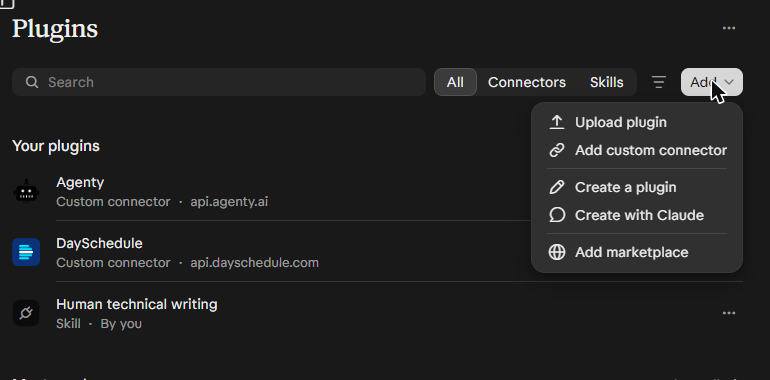
- 01Open Plugins in the left sidebar.
- 02Click Add (top right), then Add custom connector.
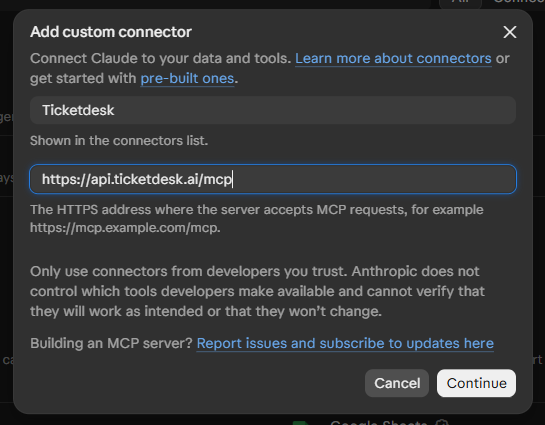
- 03Name it Ticketdesk, paste https://api.ticketdesk.ai/mcp as the MCP server URL and click Continue.
- 04Click Connect. A Ticketdesk page opens: log in if asked and click Allow.
- 05You are back in Claude with Ticketdesk connected. Ask your question; the answer shows the Ticketdesk tools it called.
ChatGPT
Connect Ticketdesk to ChatGPT
On chatgpt.com.
- 01Open Plugins from the left sidebar.
- 02Click Add (top right), then Add custom MCP server.
- 03Name it Ticketdesk, keep Connection on Server URL and paste https://api.ticketdesk.ai/mcp. Leave Authentication on OAuth.
- 04Tick “I understand and want to continue”, then click Create as a plugin.
- 05Log in to Ticketdesk in the window that opens and click Allow.
- 06In a chat, type @Ticketdesk (or pick it from +) and ask your question.
Gemini
Connect Ticketdesk to Gemini
On gemini.google.com.
- 01In the left sidebar, click Customize, then the Connectors tab.
- 02Click + Custom.
- 03Paste https://api.ticketdesk.ai/mcp as the MCP Server URL and click Next. Leave Additional settings empty.
- 04Log in to Ticketdesk in the window that opens and click Allow.
- 05Ask your question. Gemini calls Ticketdesk when it needs ticket data.
Grok
Connect Ticketdesk to Grok
On grok.com.
- 01In the message box, click + and choose Add connector.
- 02Choose Custom (Add your own custom connector).
- 03Name it Ticketdesk, paste https://api.ticketdesk.ai/mcp as the Server URL and click Add Connector.
- 04Log in to Ticketdesk in the popup and click Allow.
- 05Ask your question. Grok calls Ticketdesk when it needs ticket data.
Developer tools
Claude Code, Cursor and VS Code
Add the server URL; the first time it connects, a browser window opens to log in and click Allow. Ticketdesk serves Streamable HTTP; a server card is published for registries.
claude mcp add --transport http ticketdesk https://api.ticketdesk.ai/mcpThen run /mcp in Claude Code, pick ticketdesk and choose Authenticate.
Allow and ask
Allow once, then ask the way you normally would.
Connecting opens a Ticketdesk page that shows what the AI can do. Click Allow and you are back in your chat. The AI picks the Ticketdesk tools itself.
- “Summarise the open urgent tickets and tell me which ones are waiting longest for a reply.”
- “Read ticket #1042 and draft a reply. Show it to me before you send it.”
- “Tag every open ticket that mentions a refund with “billing” and set priority to high.”
- “Assign the unassigned tickets in the Sales inbox to Priya.”
- “What did customers complain about most this week? Group the open tickets by topic.”
- “Add an internal note to #1042 with what we found, then close it as completed.”
Tools the AI can call
| get_tickets | List and search tickets by state, priority, assignee or tags |
|---|---|
| get_ticket | Read one ticket with requester, assignee, tags, priority and inbox |
| get_ticket_activities | Read the full thread: customer replies, agent replies, notes and events |
| create_ticket | Open a ticket with requester details, priority, tags and custom fields |
| send_reply | Reply to the customer by email from the ticket’s inbox |
| add_note | Add a private internal note that only your team sees |
| set_ticket_state | Close a ticket with a reason, or reopen it |
| set_ticket_priority | Set priority to low, medium, high or urgent |
| set_ticket_tags | Replace or clear the tags on a ticket |
| assign_ticket | Assign a ticket to a team member, or unassign it |
| set_ticket_inbox | Move a ticket to another inbox |
| get_users | List team members to find who to assign |
Limits and privacy
What it can and can’t do.
What it can read
Tickets, their full conversation threads and internal notes, requester details, and the team members in your account.
What it can change
Ticket state, priority, tags, assignee and inbox, plus new replies and notes. It can’t delete tickets or touch settings, AI agents, inboxes or billing.
Disconnect any time
Every app you allowed is listed in Settings, Developers, under Connected apps. Disconnect removes its access at once.
Any Ticketdesk account can connect. Requests per minute are limited per account by plan; expired trials get the Free limit.
| Plan | MCP requests per minute |
|---|---|
| Free | 20 |
| Basic | 60 |
| Professional | 120 |
| Business | 300 |
| Enterprise | 600 |
FAQ
Frequently asked questions
Which Claude, ChatGPT, Gemini or Grok plan do I need?
That depends on each app. If you don’t see the option to add a custom connector or MCP server, your plan in that app may not include it.
Connect fails or keeps asking me to log in.
Check that the URL is exactly https://api.ticketdesk.ai/mcp, then remove the connector in that app and add it again. If you changed your Ticketdesk password, connected apps are signed out and need to connect again.
Whose permissions does the AI use?
Yours. The AI acts as the Ticketdesk user who clicked Allow: replies and notes are posted under your name, and it only sees tickets in your account.
Can it delete tickets or change my settings?
No. The tools read tickets and update their state, priority, tags, assignee and inbox, and add replies and notes. There is no tool to delete tickets or change account settings, inboxes, AI agents or billing.
Will it email my customers without asking?
send_reply sends a real email from the ticket’s inbox. Most AI apps ask you to approve a tool call before it runs; keep that approval on for Ticketdesk, or ask the AI to show you the draft first.
I hit the rate limit.
Limits are per account, per minute, and reset after a minute. Upgrading your plan raises the limit.
What does Ticketdesk see from my chat?
Only what the AI sends to the Ticketdesk tools, such as a ticket ID, a search filter or the text of a reply. The rest of your chat stays in the AI app.
How do I disconnect?
Open Settings, Developers in Ticketdesk and click Disconnect next to the app under Connected apps. You can also remove the connector in the AI app.