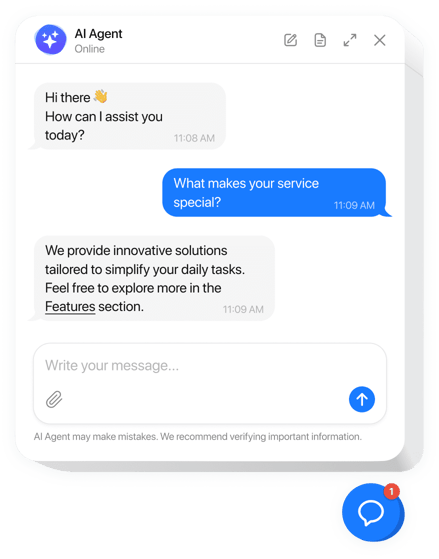
Ticketdesk AI Chatbot helps you automate customer support, answer common questions instantly, and reduce response time - right from your website. With just a few simple steps, you can create, customize, and embed the AI chatbot to start assisting your website visitors 24/7.
To embed AI chatbot on your website, you’ll need to create a chatbot on Ticketdesk AI, generate the JavaScript embed code, and paste it into your website’s HTML.
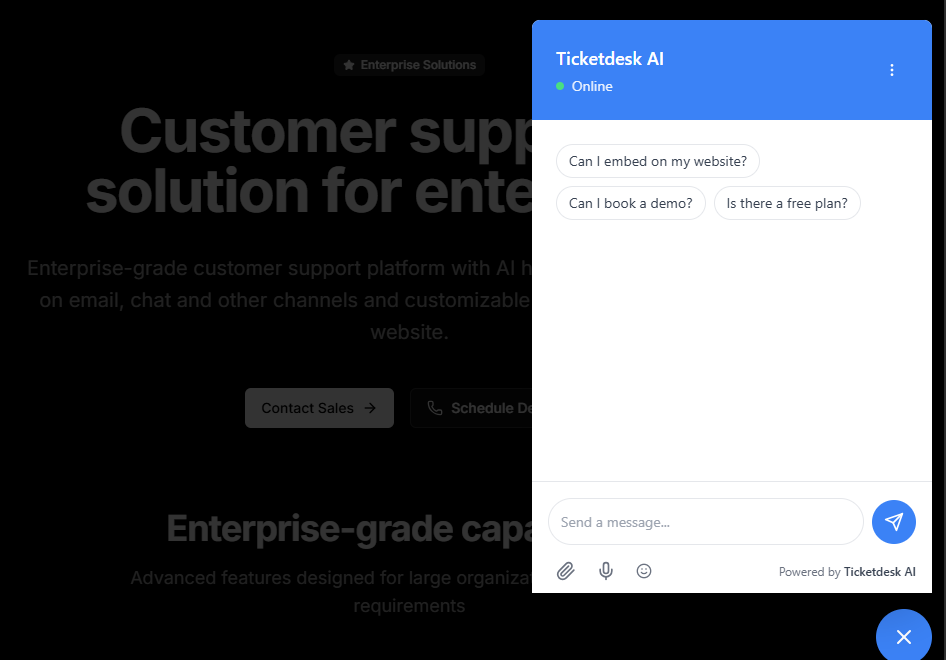
Once embedded it will look like this on your website -
Ticketdesk AI supports advanced custom AI models such as ChatGPT-5, Gemini, and other large language models to create an AI agent for customer support and provide real-time assistance to visitors.
You can use the AI chatbot to answer sales and support-related questions or train it with your own data to deliver custom, business-specific responses automatically.
Here is the step-by-step guide to learn how to create a chatbot, customize color, configure LLM models and embed to your website -
Create Chatbot
- Log in to your Ticketdesk AI account
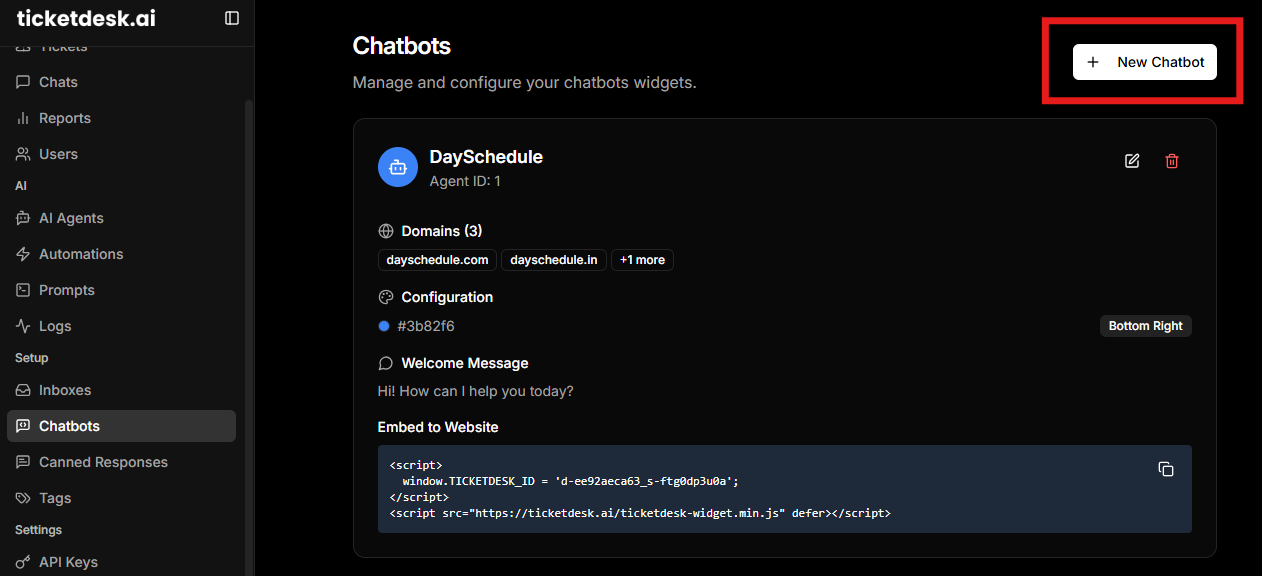
- Navigate to Chatbots from the sidebar
- Click Create Chatbot
- Provide basic details like chatbot name, domain, color etc.
- Save and activate the chatbot
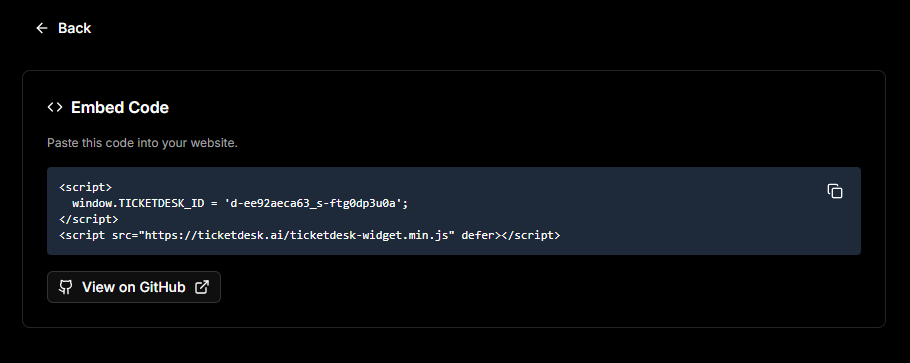
Embed Chatbot
- Go to the Embed code shown on the Chatbot
- Copy the provided JavaScript embed code
- Paste the code before the closing
</body>tag on your website - Publish your site and verify the chatbot is visible
Customize Chatbot
Customize your chatbot to match your brand, control AI behavior, and capture the right visitor information as per your business need -
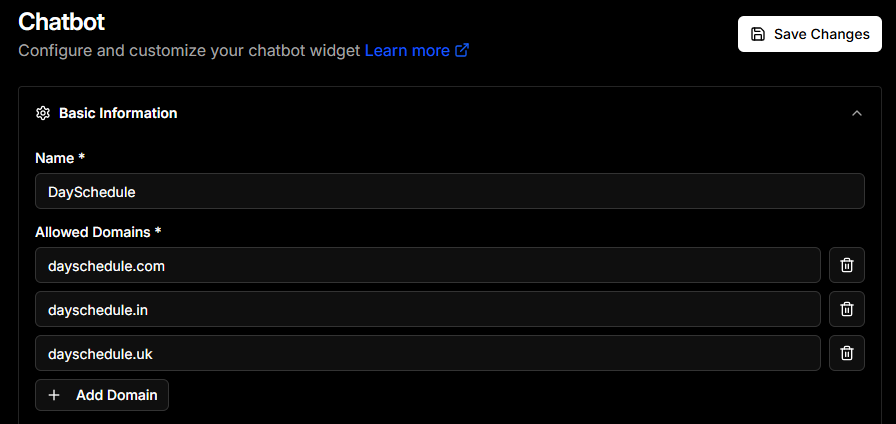
Basic Settings
Configure the core identity and allowed usage of your chatbot.
- Chatbot Name: Set a recognizable name (e.g., Support)
- Allowed Domains: Add the websites where the chatbot is permitted to run
AI Responses
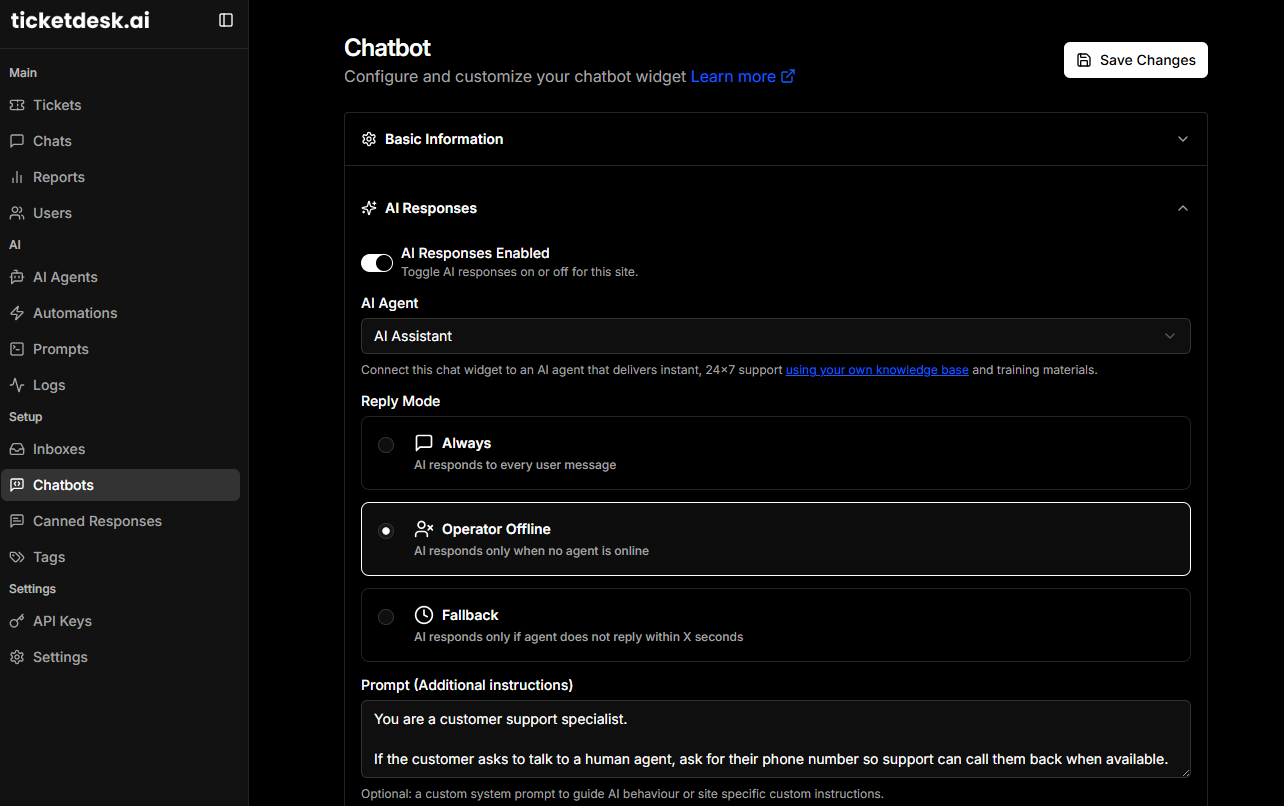
Using the AI response configuration, you can control how and when the AI chatbot replies to users.
- Select AI Agent: Choose the AI model or agent (e.g., ChatGPT-5, Gemini)
- Reply Mode:
- Always - AI responds at all times
- Operator Offline - AI responds only when human agents are unavailable
- Fallback - AI replies only when operators can’t answer
- AI Prompt: Define the chatbot’s behavior and tone (e.g., customer support specialist instructions)
- Max Messages: Limit the number of AI messages per conversation (optional)
Appearance
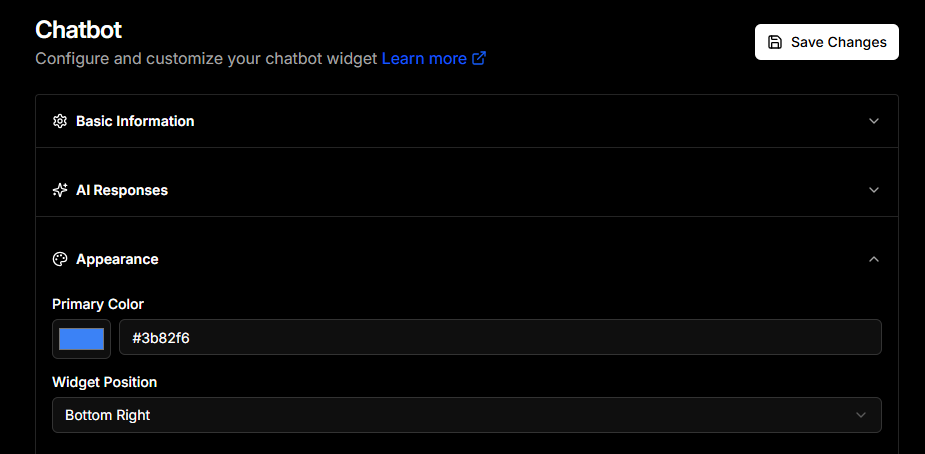
Customize how the chatbot looks and where it appears on your website.
-
Chatbot Color: Match your brand color (e.g.,
#3b82f6) - Position: Choose the display position (bottom-right, bottom-left, etc.)
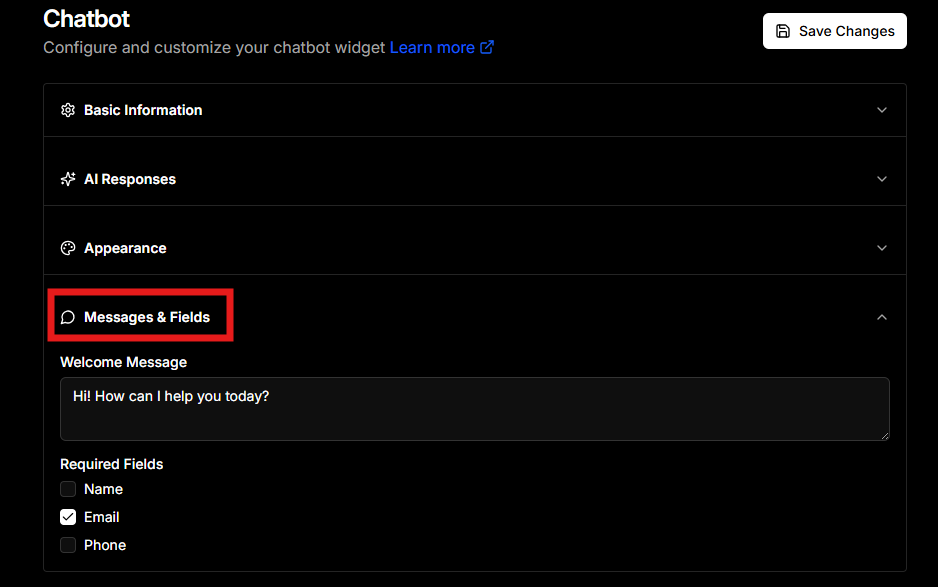
Welcome Message & Leads
Create a friendly first impression and collect essential visitor details using welcome message or suggestion buttons to start a conversation.
- Welcome Message: Set the initial greeting shown to visitors (e.g., “Hi! How can I help you today?”)
-
Required Fields: Ask for visitor information before or during chat
- Name
- Phone number
Notifications
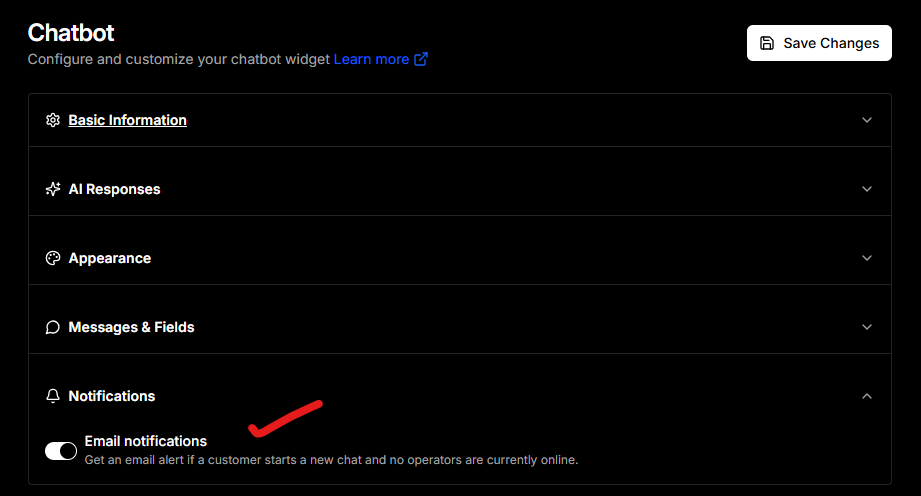
Email notifications - To send email notifications when a new chat session starts and no operators are online to alert for human support if you are not using the AI agent to respond automatically.