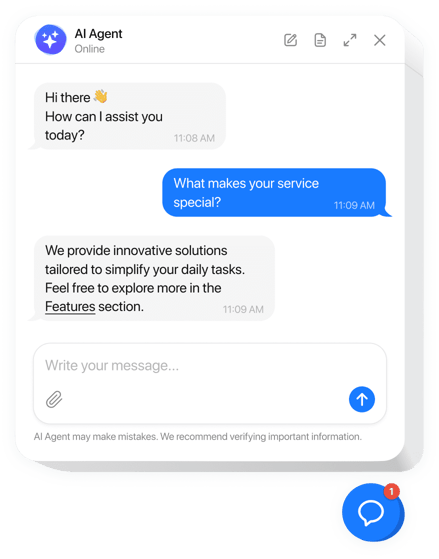
Embed the Ticketdesk AI chatbot into your Shopify store to deliver 24/7 automated customer support with AI. This helps to reduce response time, and increase conversions. Instead of losing sales due to unanswered queries, provide instant, AI-powered responses to product questions, order tracking requests, return requests and more.
Our simple Shopify chatbot embed code makes integration fast and developer friendly - Just 2 lines of code to enhance customer engagement, automate responses with AI.
Prerequisites
Before you begin the integration process, ensure you have the following:
- An active Ticketdesk AI account.
- Your unique Ticketdesk Chatbot ID (found in your Ticketdesk AI > Chatbots).
- Access to your Shopify store’s theme code editor.
Adding the Ticketdesk AI Chatbot to Shopify
Follow these steps to embed your Ticketdesk AI chatbot onto your Shopify website.
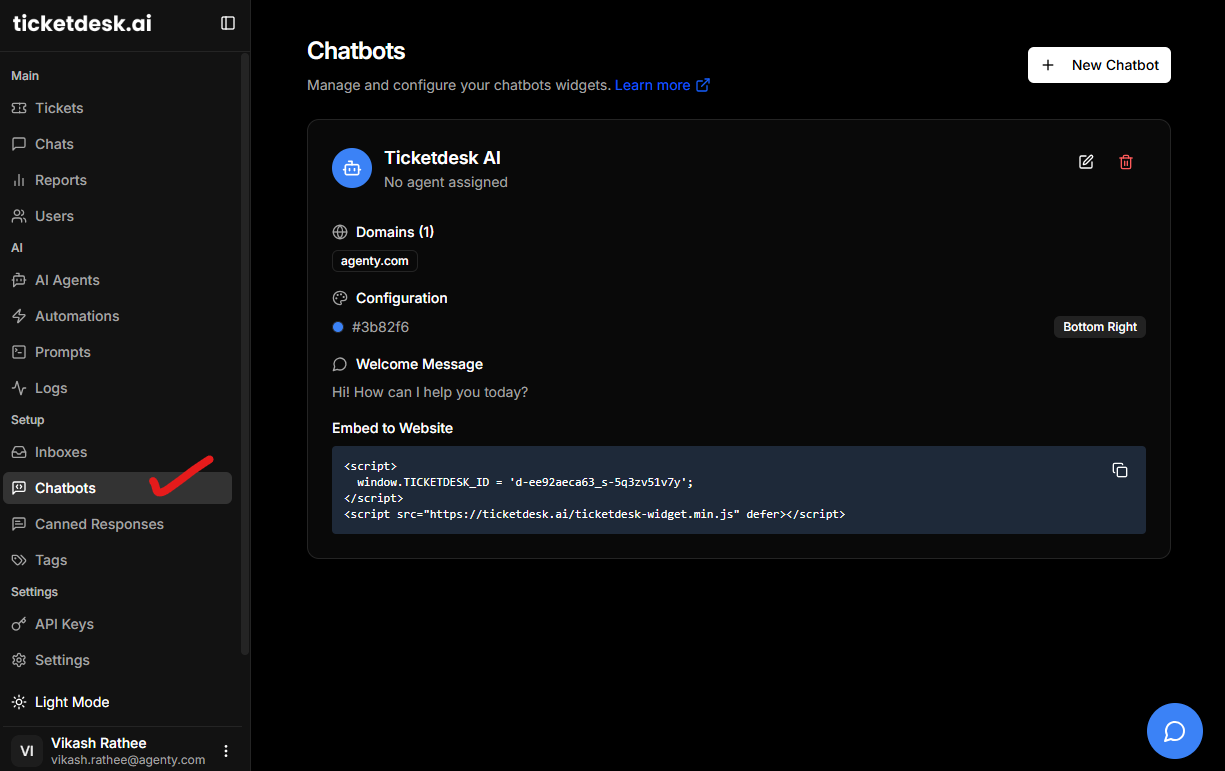
1. Locate Your Ticketdesk Widget ID
First, you need your specific chatbot ID from the Ticketdesk AI platform. This ID links your website to your AI agent configuration.
- Log in to your Ticketdesk AI dashboard.
- Navigate to the Settings > Chatbots
- Copy your provided Chatbot ID, which looks like a unique alphanumeric string (e.g., ‘xxx’ in the example below).
2. Access Your Shopify Theme Code
You will be adding a small JavaScript snippet to your main theme file to load the AI chatbot widget.
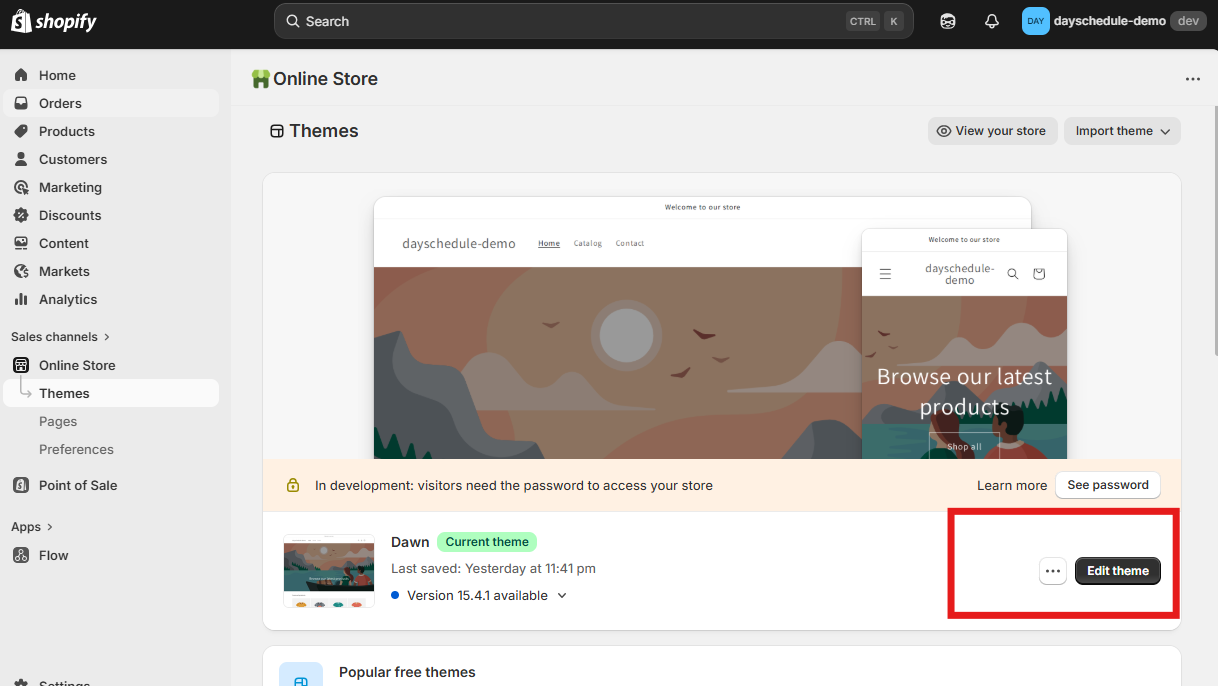
- Log in to your Shopify admin panel.
- Navigate to Online Store > Themes.
- Find the theme you want to edit and click the Actions dropdown menu.
- Select Edit code.
3. Edit the Theme Liquid File
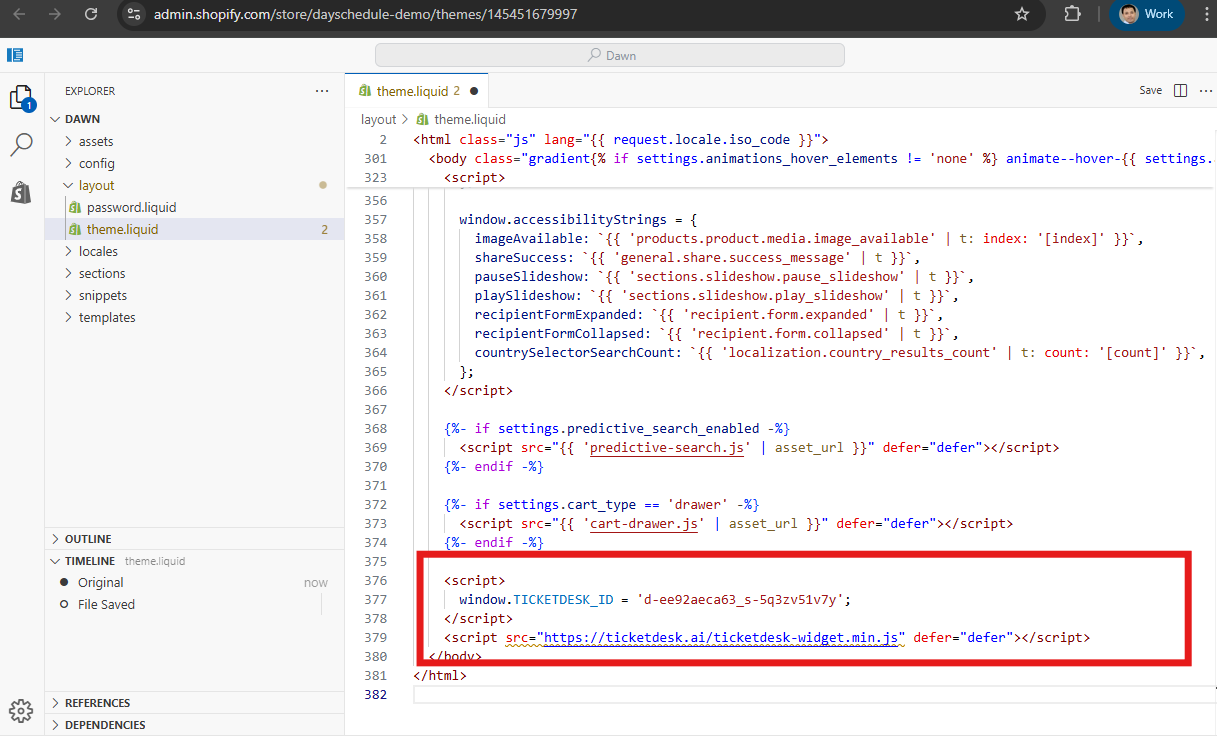
The best place to add the universal chat widget script is typically in the theme.liquid file, which loads on every page of your store.
- In the code editor, look under the Layout folder and click on theme.liquid.
- Scroll to the very bottom of the file, just before the closing
</body>tag. - Paste the following Ticketdesk AI embed code snippet, making sure to replace
'xxx'with your actual Ticketdesk AI Widget ID.
Embed AI chatbot
<script>
  window.TICKETDESK_ID = 'xxx';
</script>
<script src="https://ticketdesk.ai/ticketdesk-chatbot.min.js" defer></script>
4. Save and Verify the Installation
- Click the Save button in the top right corner of the code editor.
- Open your Shopify store in a new browser tab.
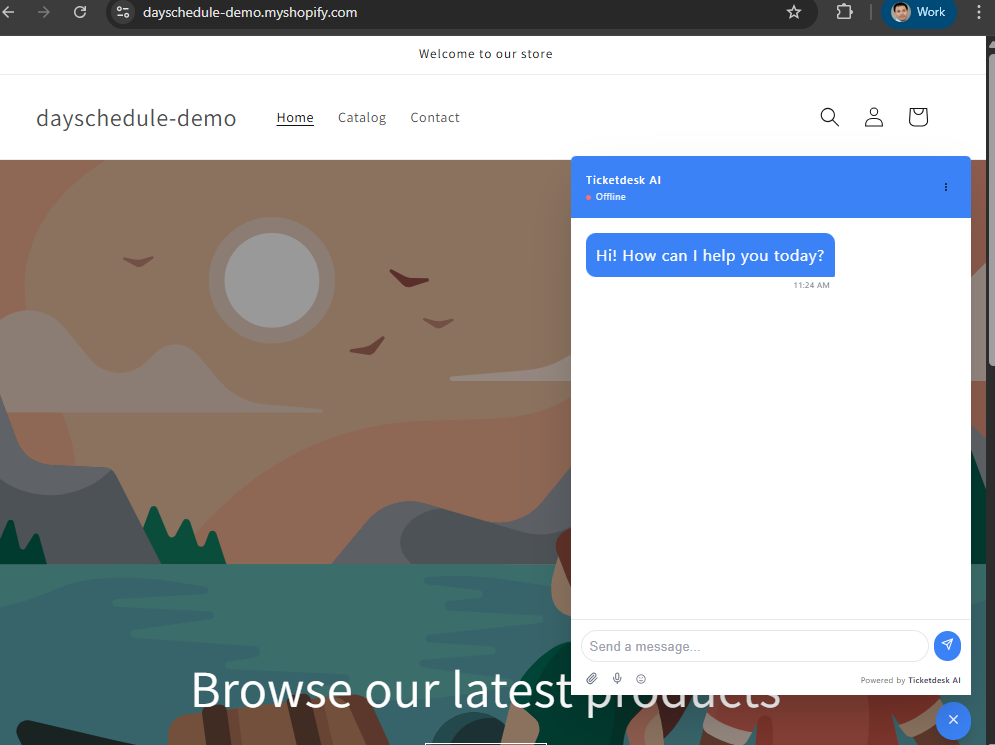
- Refresh the page. You should now see the Ticketdesk AI chat widget icon appear, usually in the bottom right corner of your screen.
Enhancing Your AI Chatbot Capabilities
Your newly embedded AI chatbot is now is ready to answer common customer questions immediately. For more advanced functionality, remember that you can significantly enhance your agent’s performance by training with custom documents, your website URLs, or markdown files to ensure it answers questions specifically relevant to your products, policies, and services.