Customer support teams often deal with repetitive questions, from password reset requests to order status updates for their tickets. Using canned responses in Ticketdesk AI, you can create re-usable email templates to insert pre-written replies into tickets.
Canned responses save time, ensure consistency across your support team, and improve customer satisfaction by delivering quick answers, auto responses. You can also insert dynamic parameter like {{requester.name}}, {{subject}} or {{ticket_id}}, so each reply feels personal to the ticket requester without requiring manual editing.
Create Canned Response Template
- Login to your Ticketdesk AI Account
- Go to Canned Responses page from sidebar
- Click on the create button to create a new canned response.
- Write the email content and friendly name to save it
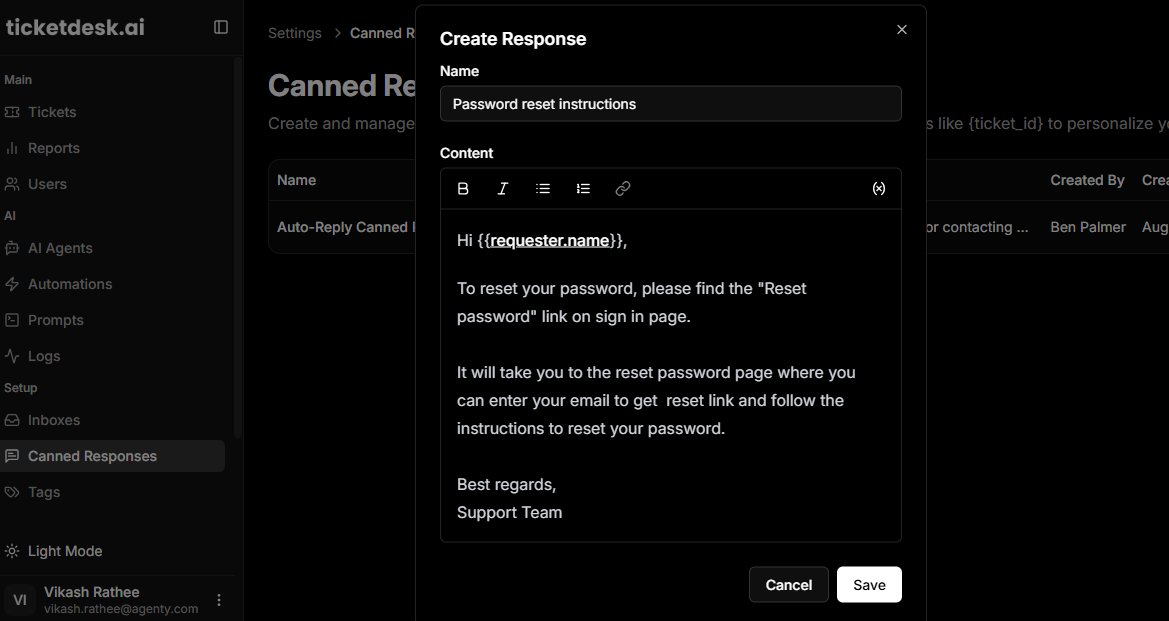
Merge parameters
The merge parameters dynamically replace placeholders with actual ticket data when the email is received on a Ticketdesk Inbox.
| Merge Parameter | What It Inserts | Example Output in Email |
|---|---|---|
{{ticket_id}} |
The unique reference number of the support ticket | #86596 |
{{subject}} |
The subject line of the ticket | Login page showing error |
{{priority}} |
The assigned priority level of the ticket | low |
{{source}} |
The channel through which the ticket was created |
email, web , chat
|
{{requester.name}} |
The full name of the customer who created the ticket | Vikash Rathee |
{{requester.email}} |
The email address of the customer | vikash@gmail.com |
{{created_at}} |
The date and time (ISO) when the ticket was created | 20 Feb 2026, 10:24 AM |
Example canned response -
Subject: Re: {{subject}} (Ticket {{ticket_id}})
Hi {{requester.name}},

Thank you for reaching out to us.

We’ve received your request regarding: "{{subject}}"

Ticket Details:
• Ticket ID: {{ticket_id}}
• Priority: {{priority}}
• Submitted via: {{source}}
• Date : {{created_at}}

Our team is reviewing your concern and will get back to you shortly.

Best regards,
Support Team
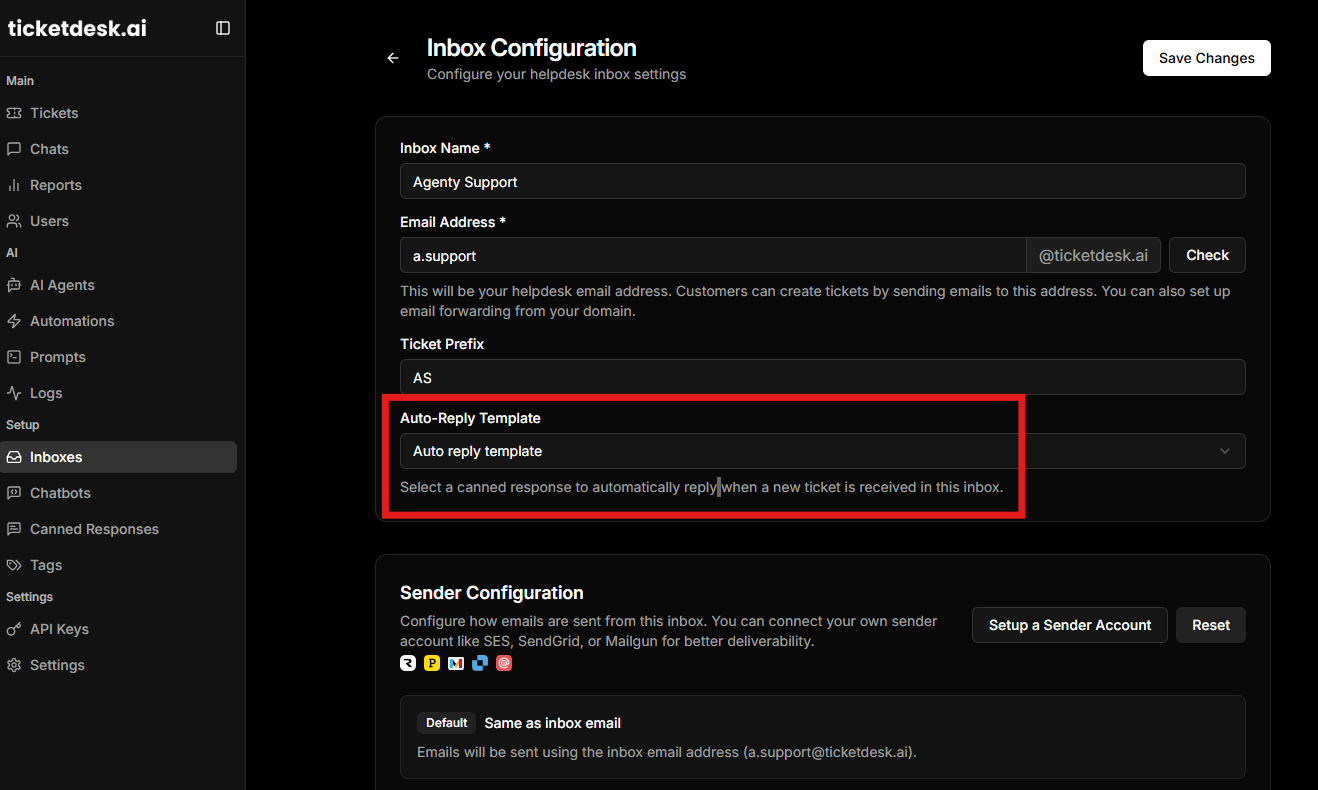
Setup Auto Reply
- Go to the Inbox and create or edit the inbox.
- Select the Canned Response template
- Save the inbox
When a new ticket reaches an Inbox, the Ticketdesk AI first checks whether a canned response template has been selected in the Inbox for auto reply. If a template is selected, the system automatically sends that canned response to the requester.
During sending, all merge parameters are dynamically replaced with the corresponding ticket data, ensuring the reply is personalized and accurate.
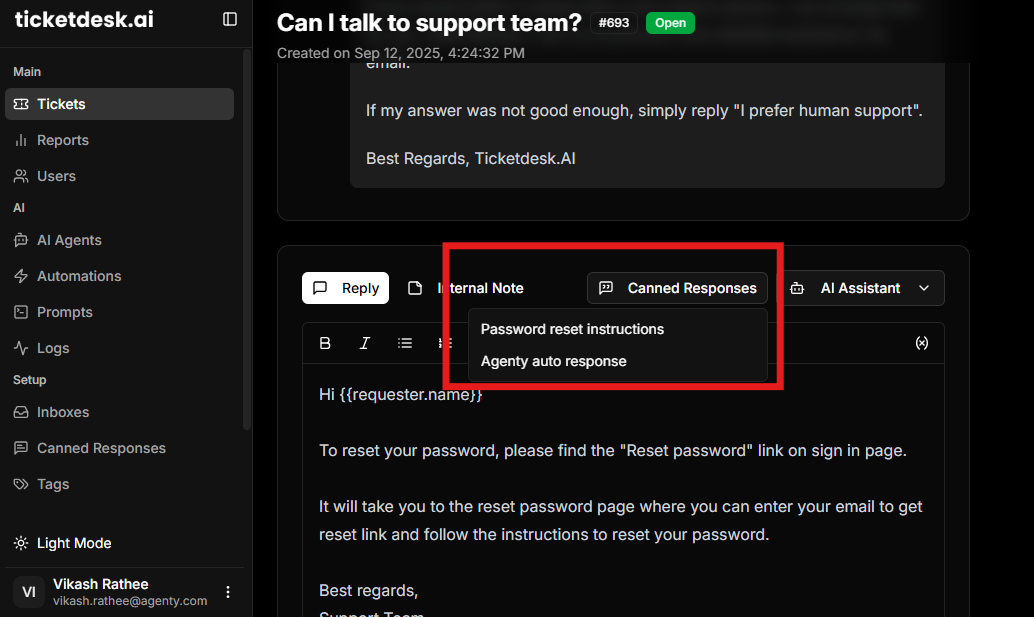
Support Ticket Response
You can also use the canned responses in ticket reply panel. The placeholders will automatically fill with the correct ticket details, saving valuable time for your helpdesk team in writing the personalized responses.
- Open the ticket you are working on, and click on the Canned Responses dropdown.
- Select a canned response and it will automatically compose the email with parameter merged and ready to send.
Alternatively, you can enable AI replies, where Ticketdesk AI automatically write responses based on the conversation history and knowledge base provided while the agents training.