Learn how to train your AI agent in Ticketdesk AI using website URLs, PDFs, sitemaps, plain text, audio, and YouTube videos to answer customer support questions by feeding AI with right knowledge base.
95% of customer interactions are predicted to be handled by AI by 2025, and 91% of businesses are positive about using AI for consumer engagement according to recent industry research. Companies across every sector are discovering that AI customer support isn’t just a nice-to-have anymore - it’s becoming essential for staying competitive.
For your AI agent to give accurate answers, it needs to learn about your product, services, and policies. In Ticketdesk AI, this is done by adding knowledge sources. The agent reads each source, indexes it, and then uses the content as context when replying to customers.
In this guide, I will show you how to add different types of sources and what each one is best for.
Open the Sources Tab
- Go to Setup > Agents and open the agent you want to train.
- Click the Sources tab.
- Click Add Source in the top right.
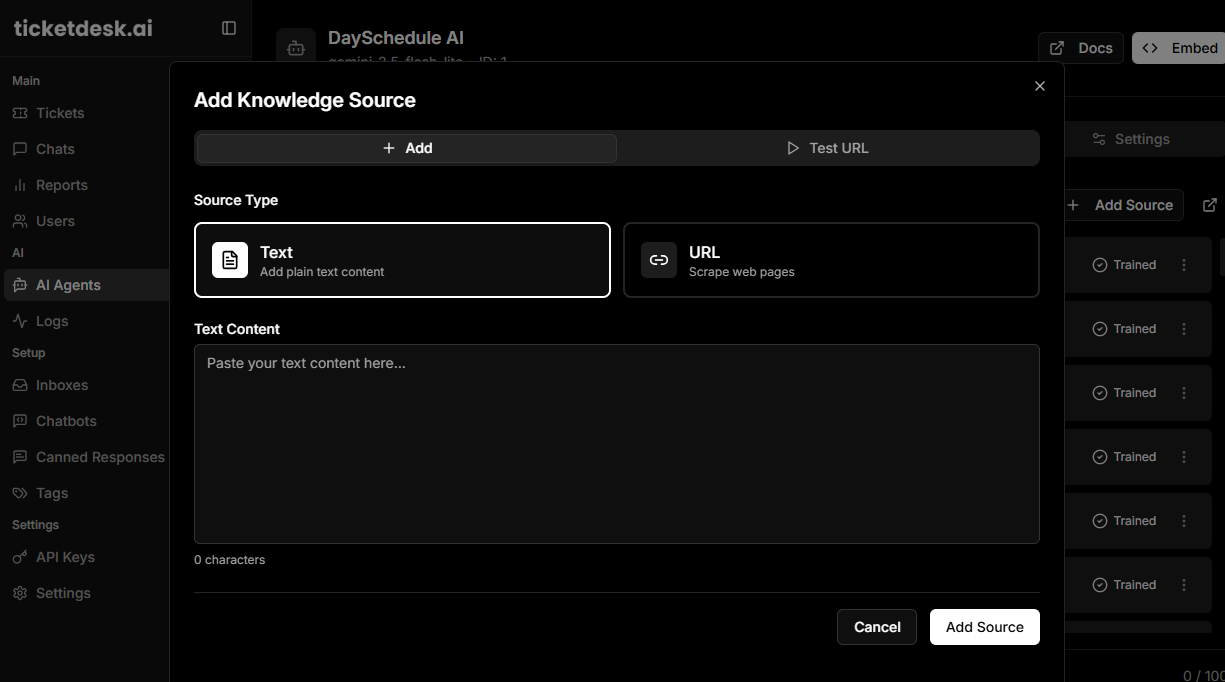
Supported Source Types
Ticketdesk AI supports six types of knowledge sources so you can train the agent on whatever content you already have:
- URL, crawl a single web page
- Sitemap, crawl an entire website using its sitemap.xml
- PDF, upload product manuals, policy docs, or any PDF file
- Text, paste in raw text or notes directly
- Audio, upload audio recordings to be transcribed and indexed
- YouTube, paste a YouTube video link to learn from the transcript
Pick the type that matches the content you have, then either paste the URL or upload the file.
How Training Works
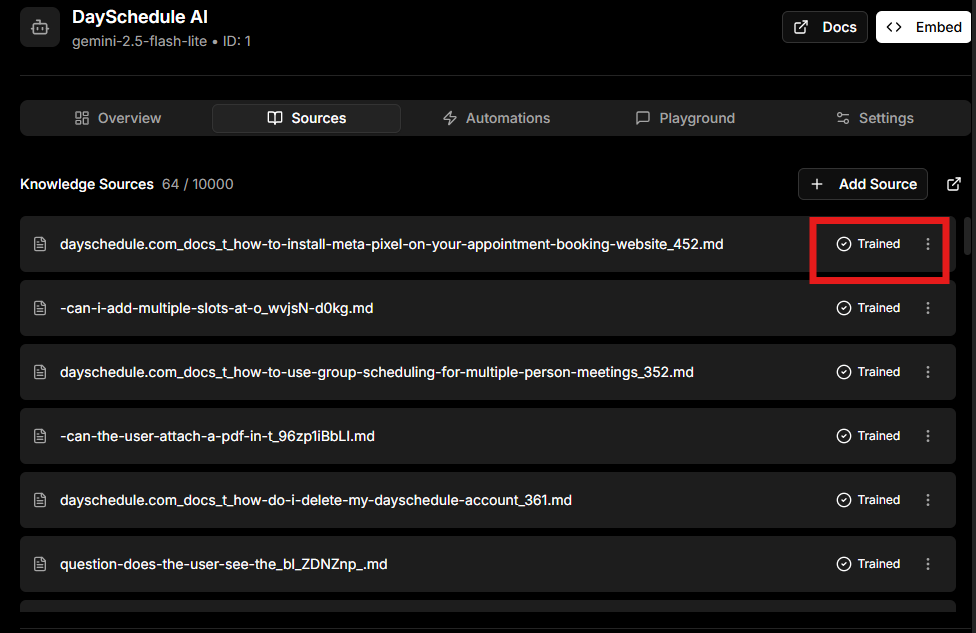
After you add a source, it goes into a queued state while Ticketdesk AI fetches and processes the content. You will see a status indicator next to each source:
- Queued, the source is being processed
- Trained, the source is ready and being used by the agent
- Errored, something went wrong, hover the source to see the reason
The list refreshes automatically every few seconds while any source is queued, so you do not need to reload the page.
Text Files
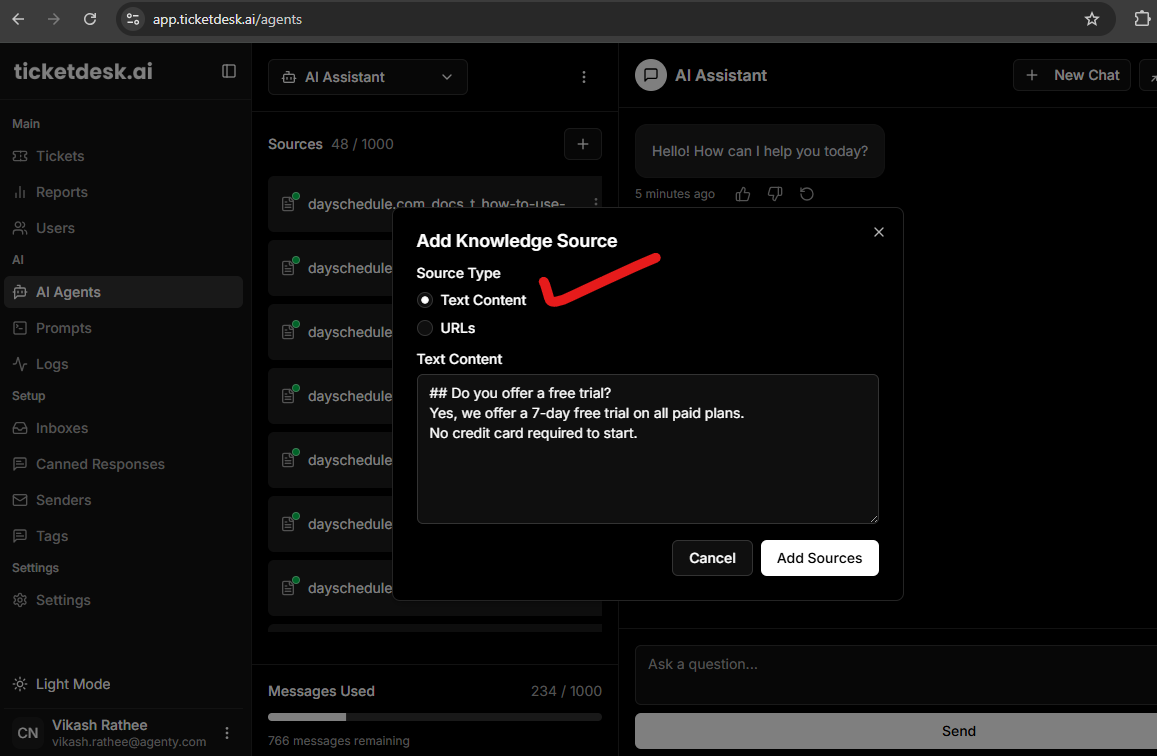
If you already have FAQs, product guides, or documentation written down, you can train your AI agent in just a few steps:
- Login to your Ticketdesk AI account
- Open your AI agent, or create new if you’ve not created an AI agent
- Click on the “+” button beside Sources to add a new source
- Prepare your content as a plain text or markdown formatted
- Enter the text and click on “Add Sources” button
- Ticketdesk AI will automatically index the content, making it searchable by your AI agent.
Every document manual, help center article, troubleshooting guide, and FAQ content you upload becomes part of your AI customer service brain. Customers ask questions, and your AI pulls the exact information from your documents to give them accurate responses based on the knowledge base.
Your AI agent training is really just showing the system what you already know. Upload your return policy, and it handles return questions. Add your technical specifications, and it answers product details. Include your setup guides, and it walks customers through installations.
Crawling URLs
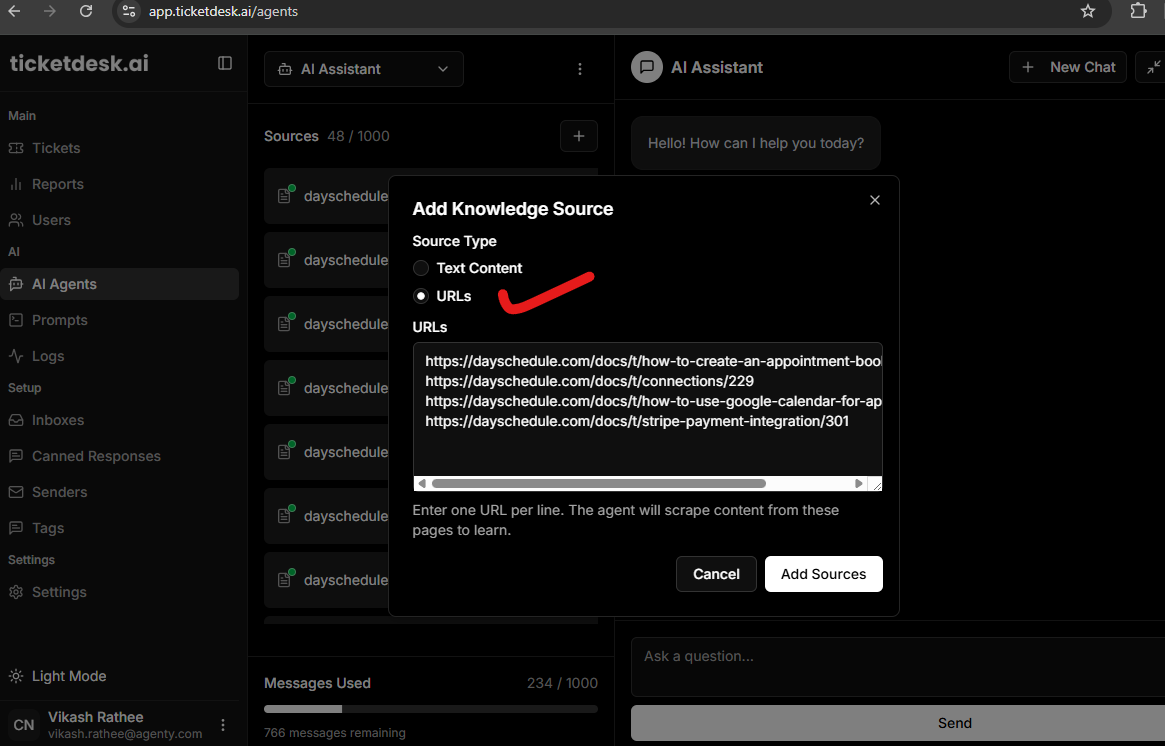
If your documentation is live on a website, you don’t need to copy-paste. Simply upload the URLs in bulk.
- Click on the Add Sources
- Select “URLs” types
- Enter the URLs into the box and submit to start crawling
When you upload the URLs, Ticketdesk AI automatically crawls the pages, skipping headers, navigation menus, and other non-essential elements. The relevant content is then extracted and converted into clean markdown before being indexed, ensuring your AI agent trains on only the most useful information from the given URL.
Ticketdesk AI transforms your static website content into dynamic customer support AI. Instead of customers scrolling through long articles and guide to find their answer, they simply ask their question in plain English and get exactly what they need from your uploaded materials.
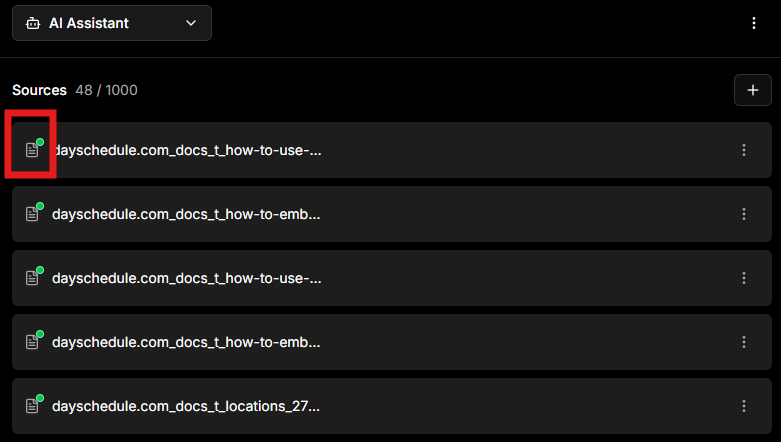
You can upload up to 100 URLs per batch to train your AI agent directly from your website. Once submitted, the crawler runs in the background using Agenty’s markdown conversion API, extracting and indexing the content automatically. You can easily track progress in the “Sources” section, where a check icon appears to indicate the status of each crawl and indexing by AI.
Edit or Delete a Source
You can update the content of a text source at any time by clicking the source row and choosing Edit. For URL, sitemap, or file sources, the recommended way is to delete the old source and add a new one so the content is re-fetched and re-indexed.
To delete a source, click the trash icon next to it and confirm.
Source Limits and Message Credits
Each plan in Ticketdesk AI includes a maximum number of sources and a monthly message credit. You can see both at the top and bottom of the Sources tab:
- The source counter shows how many sources you have used out of your plan limit
- The Messages Used progress bar shows how many AI replies you have sent this month
When you get close to the limit, you can upgrade your plan from the same screen.