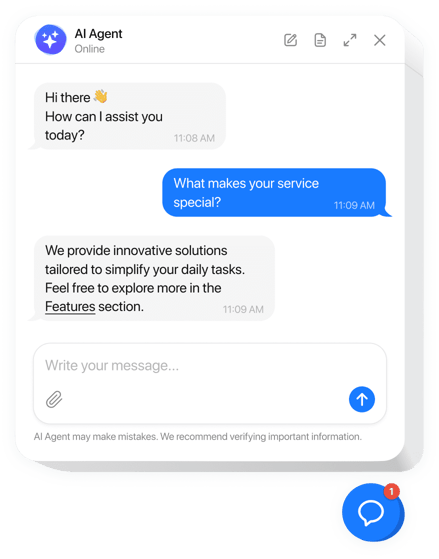
Integrating an AI chatbot into your Wix site helps automate responses and capture leads. In this article I will cover the steps to embed the Ticketdesk AI widget using the custom code feature in Wix for customer support automation and lead generation.
Prerequisites
- A Wix premium plan that supports custom code snippets
- An active Ticketdesk AI account
Before starting the integration, you need to ensure your Wix site is published and connected to a domain. The custom code feature is essential for injecting the Ticketdesk AI chatbot script, and this feature is typically available on Wix business or premium tiers only.
Having your Ticketdesk chatbot ID ready will make the process faster as it is the primary identifier for your specific chatbot configuration.
Create Ticketdesk AI Chatbot
To begin, you need to locate your unique Ticketdesk ID within your dashboard. This ID connects your Wix site to your specific AI agent settings and knowledge base.
- Login to your Ticketdesk Account
- Go to Chatbots and create one
- Enter the name, domain, color to customize the chatbot appearance.
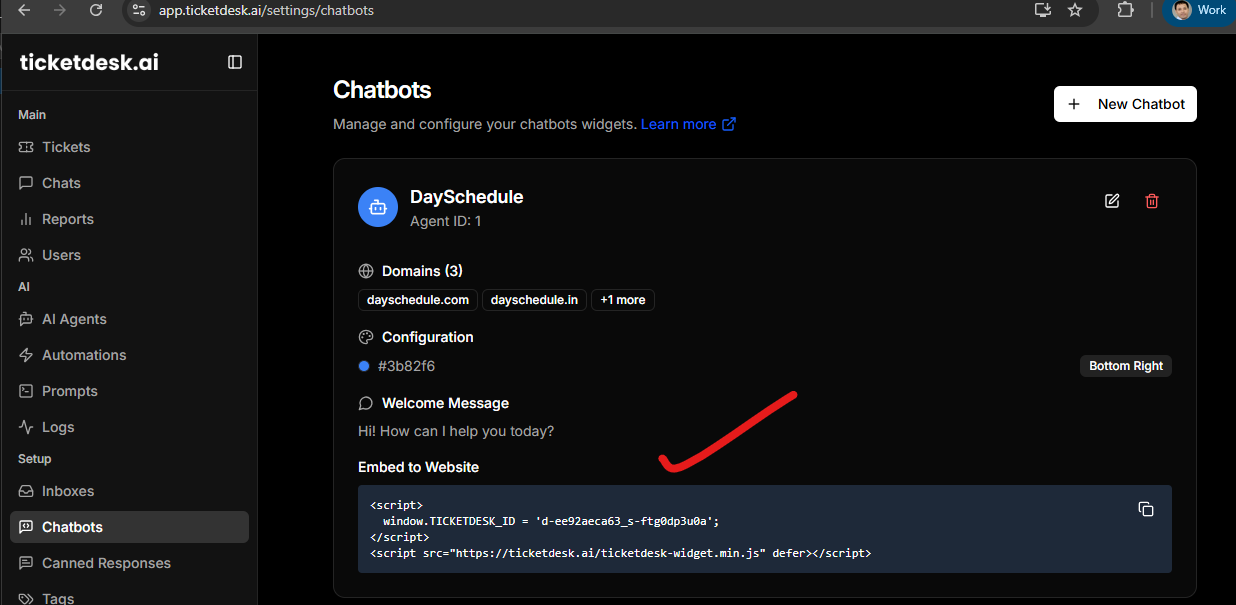
Copy the following code snippet and replace the placeholder value with your actual ID.
<script>
  window.TICKETDESK_ID = 'your_chatbot_id';
</script>
<script src="https://ticketdesk.ai/ticketdesk-chatbot.min.js" defer></script>
Adding the Ticketdesk AI Widget to Wix
Follow these steps to insert the Ticketdesk AI component into your Wix website using custom code feature:
- Log in to your Wix Dashboard and select the site you want to edit.
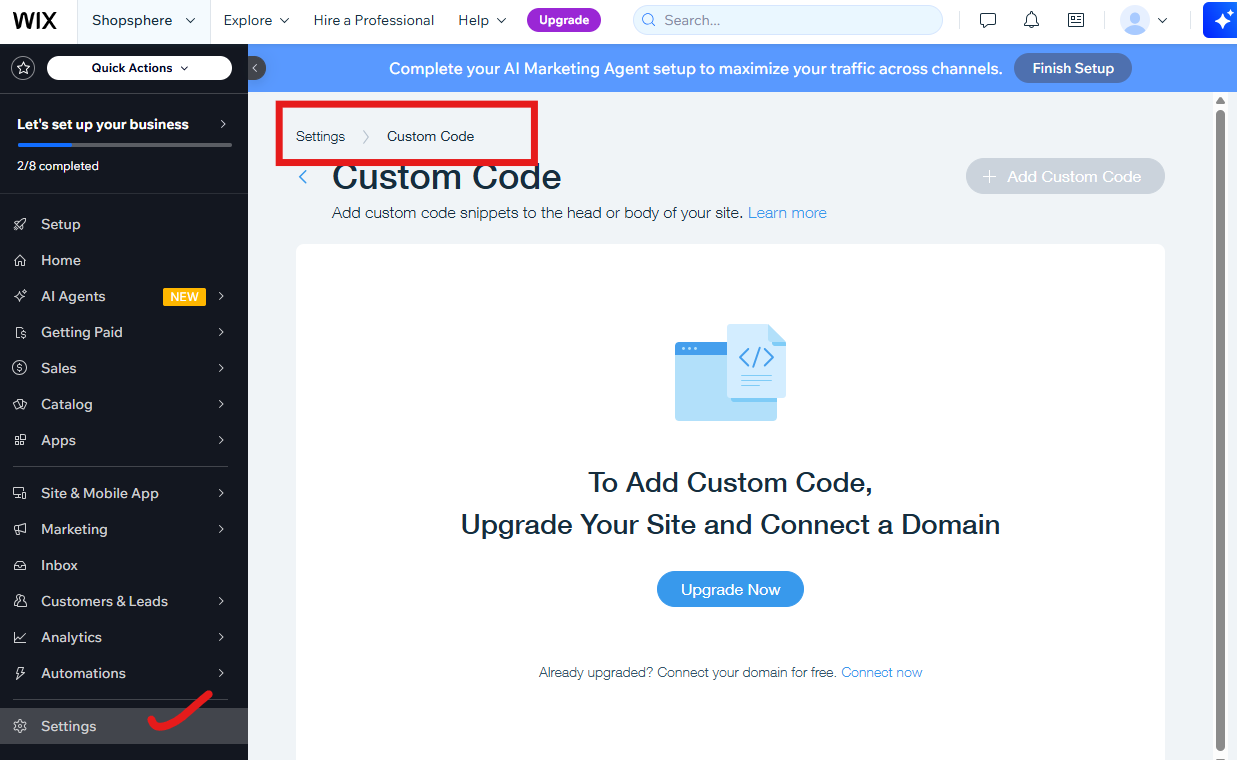
- Navigate to the Settings menu on the left sidebar.
- Scroll down to the Advanced section and click on Custom Code.
- Click the Add Code button at the top right, specifically in the Body - End section.
- Paste the TicketdeskAI script into the text box.
- Give the tool a name like Ticketdesk Chat for easy identification.
- Select All Pages under the Add Code to Pages option.
- Choose Load code on each new page.
- Click Apply to save your changes.
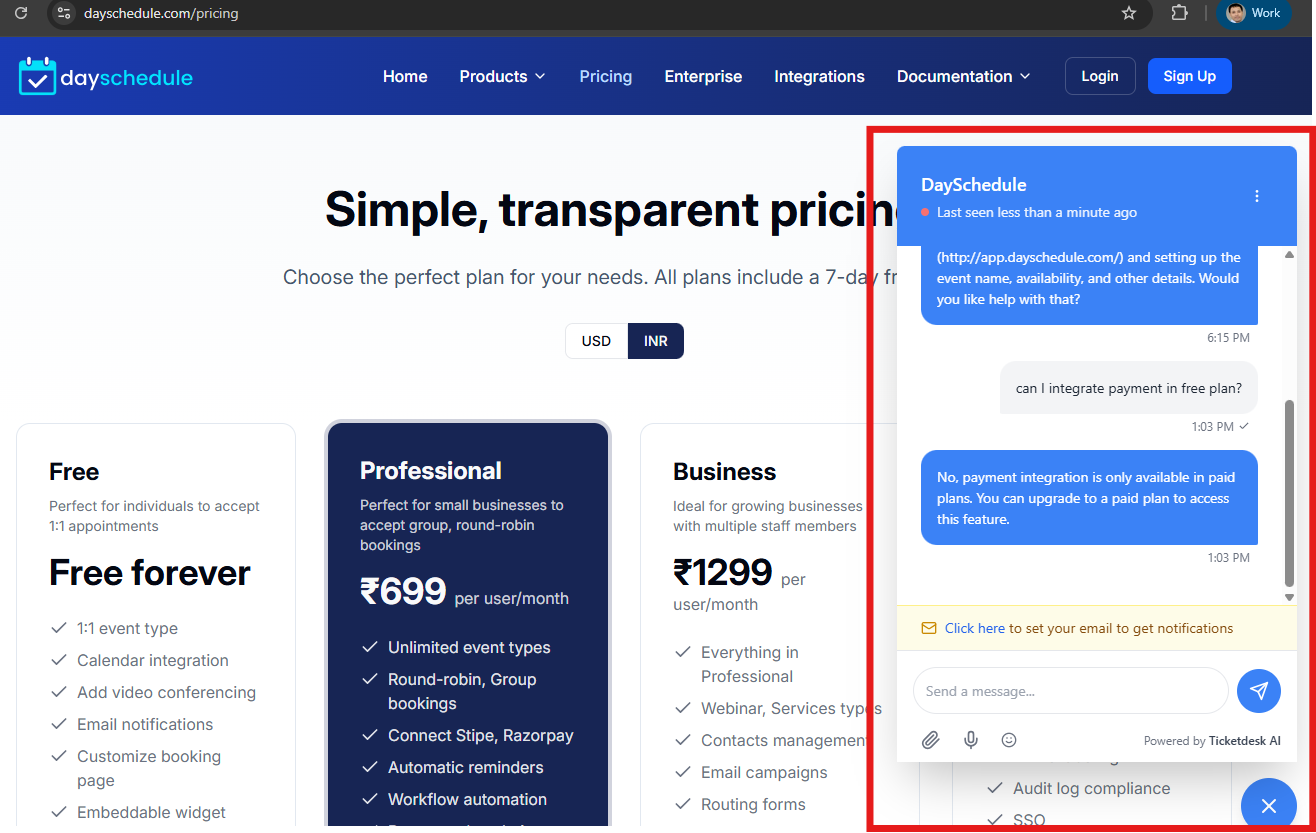
Once you publish your site, the Ticketdesk AI widget will appear in the bottom corner of your Wix pages, ready to assist your visitors.
Training Your AI Agent for Better Accuracy
You can train your AI agent for custom docs, your website, markdown files etc. to answer question relevant to your business on chat, or connect custom advanced models like ChatGPT 5.2, Gemini flash, Claude Opus 4.6 etc.
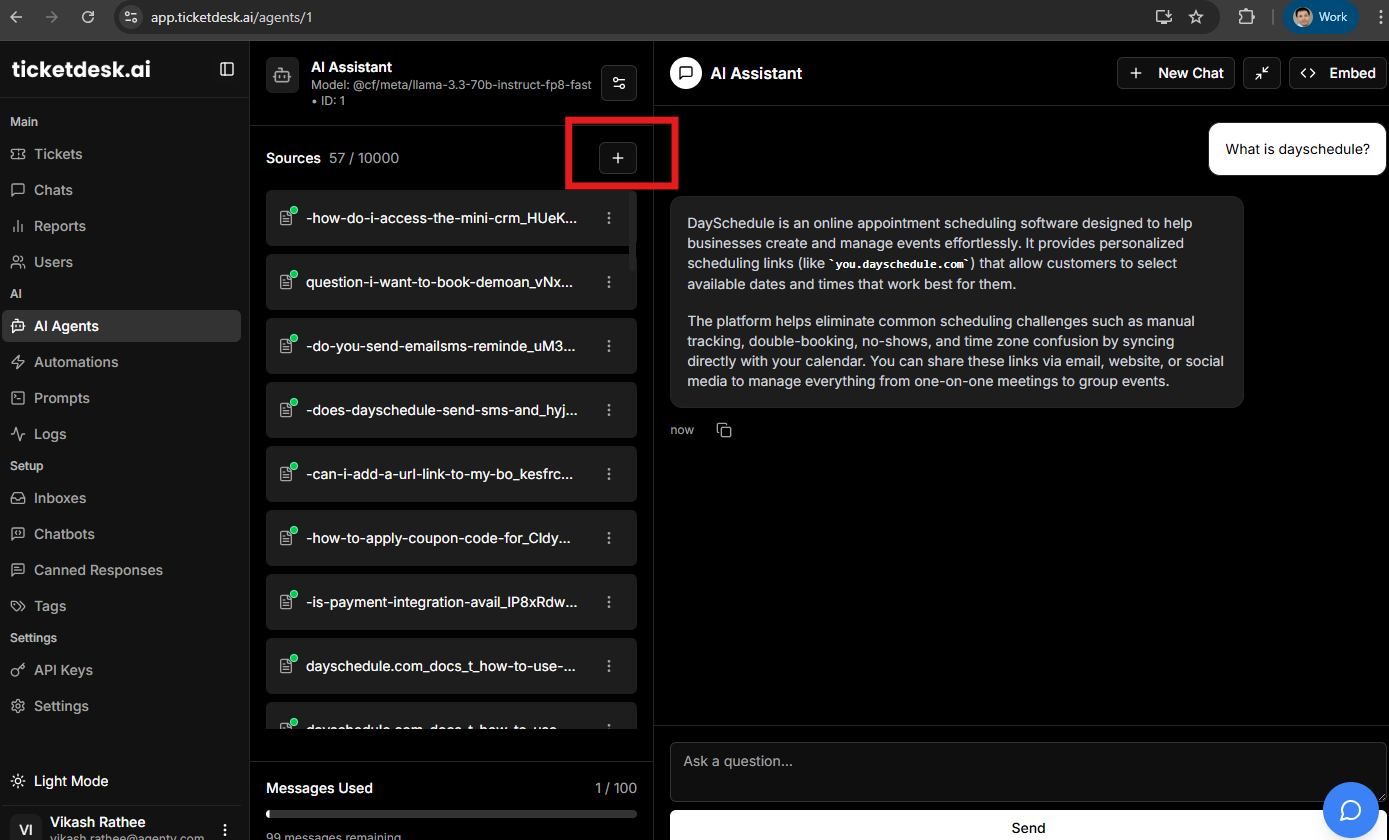
This ensures that the responses provided on your Wix site are accurate and reflect your specific business data. By feeding the AI your FAQ pages or service documentation, the Ticketdesk AI agent becomes a specialized expert for your brand.
Verifying the Installation
After applying the code, visit your live Wix URL. You should see the Ticketdesk AI chat icon. Test the integration by sending a message to see how the AI responds. If the widget does not appear, double-check that your Ticketdesk ID is correct and that the script is placed in the Body - End section of the Wix custom code settings.
Using Ticketdesk AI on Wix allows you to scale your customer support and lead generation automatically with AI.