Tickets
Draft ticket replies with the AI Assistant and custom prompts
Updated · View as Markdown
The AI Assistant writes a draft in the reply box of a ticket. Nothing is sent until you click Send Reply, so it works well for tickets you want the AI's help with but not a fully automatic answer, such as refunds, complaints or anything the AI agent hands over to your team.
Before you start
The assistant uses the AI agent connected to the ticket's inbox, including everything the agent was trained on. If the inbox has no agent, the menu shows "No AI agent connected." Open Settings, select Inboxes, edit the inbox and pick an agent under AI Agent.
A ticket without an inbox shows "No inbox selected." Edit the ticket's inbox in the sidebar first.
Use the built-in prompts
Open a ticket and click AI Assistant above the reply box.
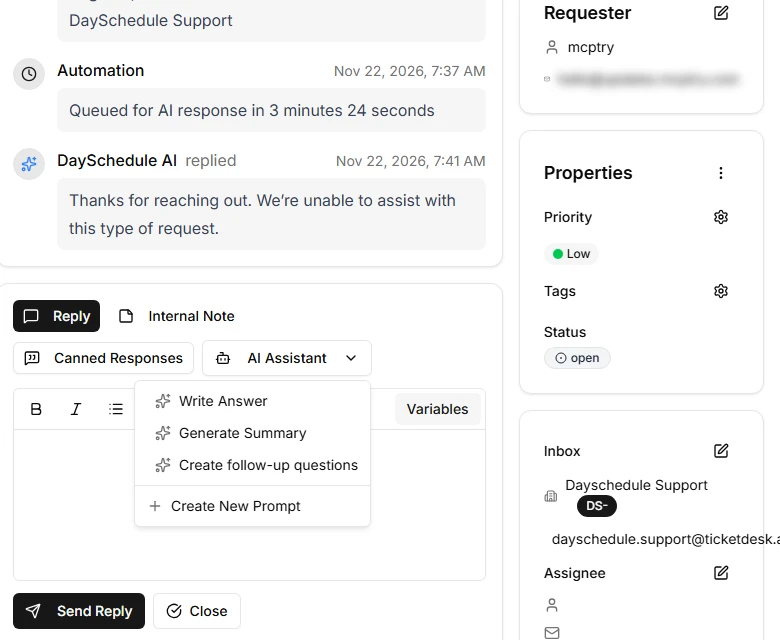
- Write Answer drafts a professional reply to the customer's latest messages, and asks for missing details when it needs them
- Generate Summary sums up the issue in one or two sentences, useful before you hand a long thread to a colleague
- Create follow-up questions suggests two or three questions that help you get the information you need
The draft streams into the editor. Edit it like any reply, then click Send Reply. To keep the result for your team only, switch to Internal Note before you send. Running another prompt replaces what's in the editor.
Add your own prompts
Custom prompts appear in the same menu and save you from typing the same instructions every day. They're set per inbox, so a billing inbox and a technical inbox can have different buttons.
- Open Settings, select Inboxes and edit the inbox.
- Scroll to Prompts and click Add Prompt.
- Enter a button label, for example "Refund reply" or "Translate to English".
- Write the prompt the AI should run when someone clicks the button.
- Click Save Changes at the top of the page.
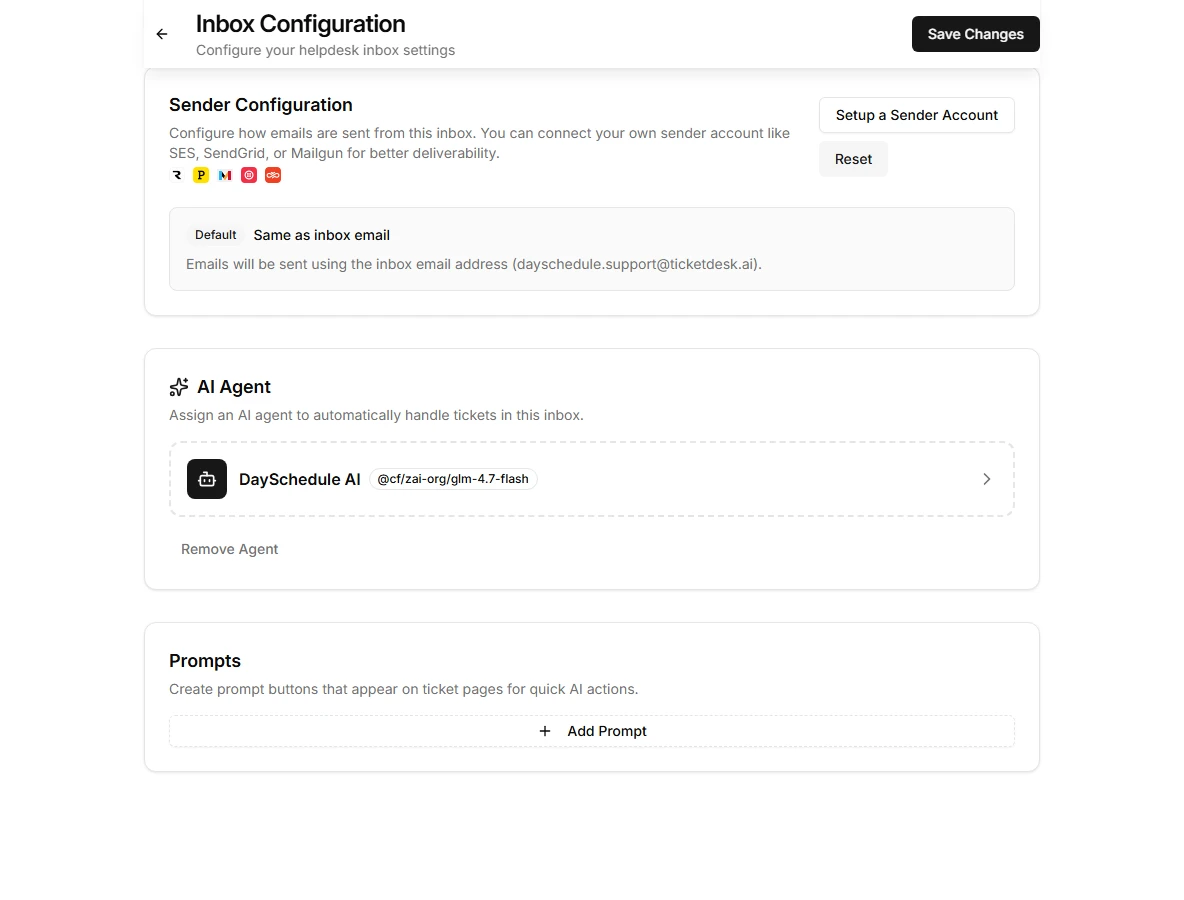
You can also click Create New Prompt at the bottom of the AI Assistant menu on any ticket, which takes you to the inbox settings.
Prompt examples
The AI already sees the ticket conversation, so the prompt only needs to say what to produce.
A refund reply that follows your policy:
Write a reply to this refund request. Follow our refund policy from the
documentation. If the purchase is older than 30 days, decline politely
and offer a discount code instead. Keep it under 120 words.
A translation for your team:
Translate the customer's last message into English. Return only the
translation, without comments.
A bug report for your developers:
Turn this ticket into a bug report with these sections: summary, steps
to reproduce, expected result, actual result, customer plan and browser.
Write "unknown" for anything the customer didn't mention.
Use it with Internal Note so the report stays on the ticket for your developers.
Related
- Canned responses for fixed replies that don't need AI
- Comments and internal notes