Live chat
Block spam visitors and IP addresses in live chat
Updated · View as Markdown
A public chat widget attracts bots, link spammers and the occasional abusive visitor. Every message they send can also trigger an AI reply, which uses AI credits. Ticketdesk AI gives you two tools on the Chats page: marking a chat as spam, and blocking the visitor's IP address.
Mark a chat as spam
Open the conversation, click the status button in the header and choose Mark as Spam. The chat moves out of your open list and into the Spam filter. The visitor isn't blocked and can still write. If you marked a real customer by mistake, open the chat from the Spam filter and choose Not Spam.
Use spam for one-off junk. If the same source keeps coming back, block it.
Block a visitor's IP address
There are two ways to block the visitor in an open conversation:
- Click Block IP Address at the bottom of the visitor details panel
- Choose Block IP from the status menu in the conversation header
Ticketdesk AI blocks the IP address for this chatbot and flags every session from that address. A blocked visitor who is still on your site is cut off immediately: their widget shows "You have been blocked from this chat." and further messages are rejected. They also can't start a new chat from the same IP, or from the same browser on a different IP.
Blocked conversations show a red block icon in the list. Use the Blocked filter to see all of them.
Manage the blocked list
Click the shield icon next to the chatbot menu at the top of the conversation list to open Blocked IP addresses.
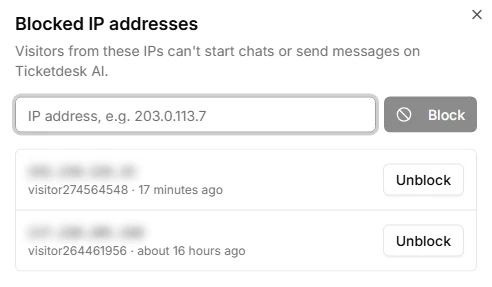
The list shows each blocked IP, the session it came from and when it was blocked. From here you can:
- Block an address before it ever chats. Type the IP, for example
203.0.113.7, and click Block. Manual entries show "Added manually". - Unblock an address with Unblock. Its sessions return to the normal list and the visitor can chat again.
The blocked list is per chatbot. Blocking an IP on one website's widget doesn't affect your other chatbots.
Built-in rate limits
Even without blocking, Ticketdesk AI limits how fast a single visitor can send messages to one chatbot. The count follows the visitor's IP address and browser, so opening a new tab or reconnecting doesn't reset it.
| Window | Limit | Message the visitor sees |
|---|---|---|
| 1 minute | 20 messages | Too many messages. Please wait a minute and try again. |
| 1 hour | 150 messages | Too many messages this hour. Please try again later. |
| 24 hours | 400 messages | Daily message limit reached. Please try again tomorrow. |
A visitor can also start at most 3 new conversations from the same IP address per chatbot in 24 hours. Real customers rarely reach these limits.
To cap AI replies inside a long conversation, set Max Messages limit on the chatbot, described in hand off chats from AI to a human.
Spam in email tickets
Chat blocking doesn't affect email. To stop a sender from creating tickets, block them on the Requesters page, see manage requesters. You can also let the AI agent filter junk with a block list.