Tickets
Search, filter and bulk update tickets
Updated · View as Markdown
The Tickets page opens on all open tickets, newest first. The toolbar above the list lets you search, filter and change the layout, and selecting tickets opens bulk actions.
Card view and table view
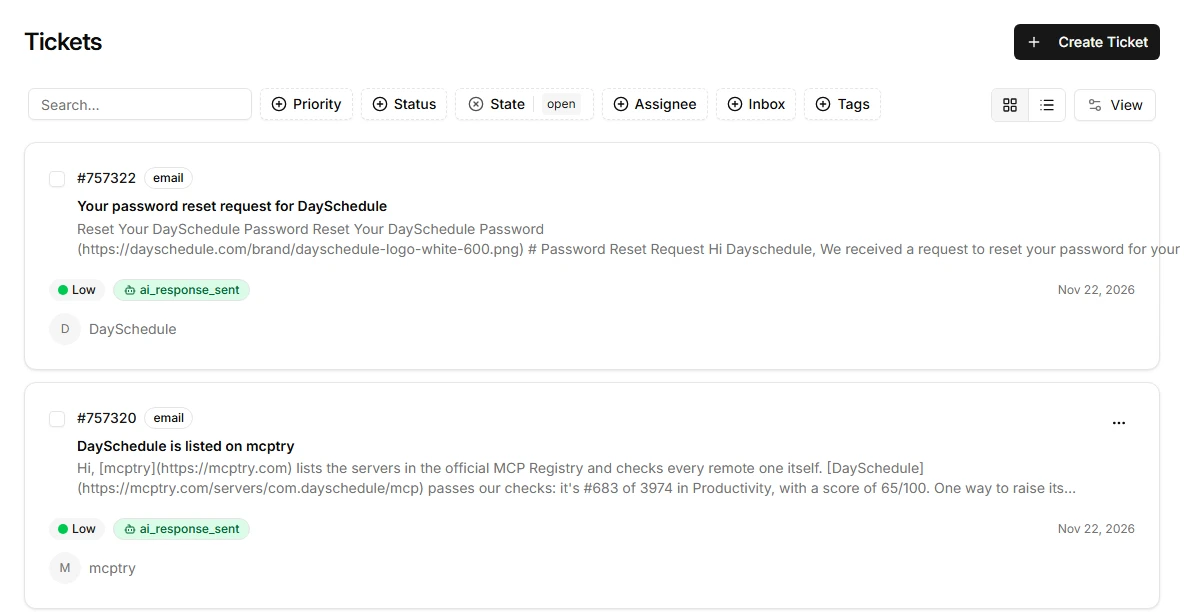
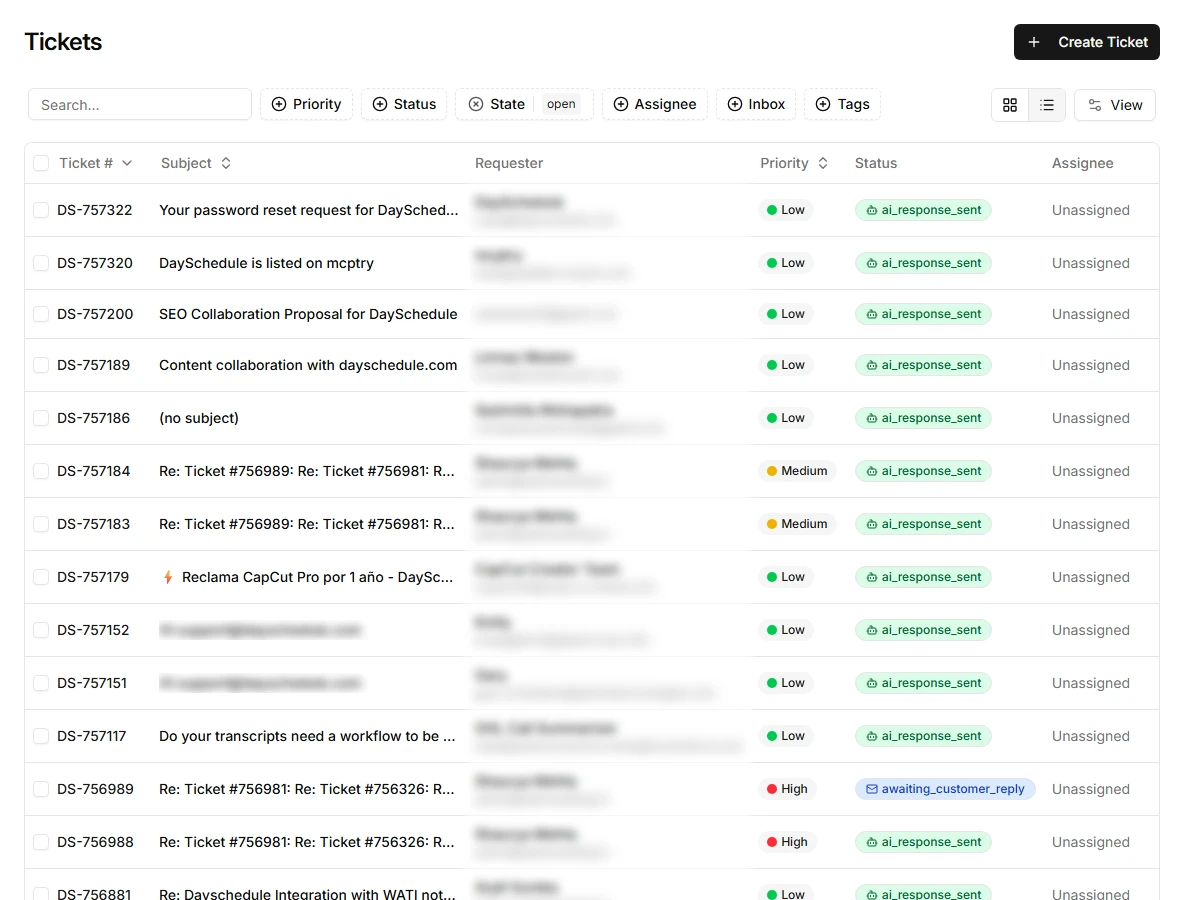
Use the two buttons next to View in the top right corner to switch layouts.
The card view shows the subject, the start of the message, priority, status, date and requester for each ticket. It's easier to read when you work through new tickets one by one.
The table view fits many more tickets on screen, with columns for the ticket number, subject, requester, priority, status and assignee. Click Ticket #, Subject or Priority in the header to sort by that column.
Search
The search box matches the ticket subject and the requester's name, email address and phone number. To jump to one ticket, search for its number, such as 757322 or DS-757322.
Search works together with the filters. If a ticket you expect doesn't show up, check the State filter, which hides closed tickets by default.
Filter tickets
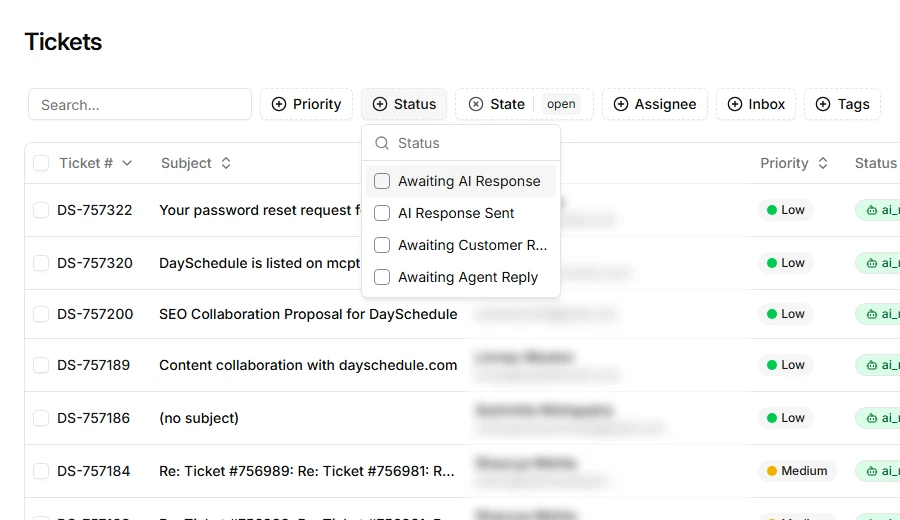
Each filter button opens a list you can tick one or more values in. Active filters show their values on the button, and you can combine as many as you need.
- Priority: low, medium, high or urgent. See prioritize tickets.
- Status: where the ticket is in the AI and agent workflow, such as Awaiting AI Response, AI Response Sent, Awaiting Customer Reply and Awaiting Agent Reply. See ticket statuses.
- State: open or closed. The list starts filtered to open, so clear this filter to see closed tickets.
- Assignee: the teammate the ticket is assigned to
- Inbox: the inbox the email arrived in
- Tags: one or more tags
Filters are saved in the page URL. Bookmark a filtered list, such as open high priority tickets in your billing inbox, or share the link with a teammate to give them the same view. Opening a ticket keeps the filtered list in the sidebar, so you can move to the next ticket without going back.
A useful filter for teams with AI replies: set Status to Awaiting Agent Reply to see the tickets the AI handed over to your team.
Bulk actions
Tick the checkbox on each ticket you want to change, or tick the header checkbox in table view to select the whole page. A bar appears with the number selected and these actions:
- Assign assigns all selected tickets to one teammate
- Close closes them, with a reason: Close as Completed, Close as Not Planned, Close as Duplicate or Mark as Spam
- Priority sets the same priority on all of them
- Delete deletes them after you confirm
Delete is only available to Owners and Admins, see team members and roles. Click the X at the end of the bar to clear the selection.
Related
- Create a ticket by hand for phone calls or walk-ins
- Assign tickets and set up assignment rules
- Draft replies with the AI Assistant