AI agents
Monitor AI jobs and AI logs
Updated · View as Markdown
When an AI agent works on a ticket, two records are created. A job is one automation run on one ticket, such as writing an AI response or setting tags. An AI log is one call to the language model, with the tokens it used. Both are on the Jobs page, under AI in the sidebar.
Look here when a customer says they never got an answer, when an AI reply looks wrong, or when you want to know where your AI credits went.
Jobs
The Jobs tab lists automation runs, newest first.
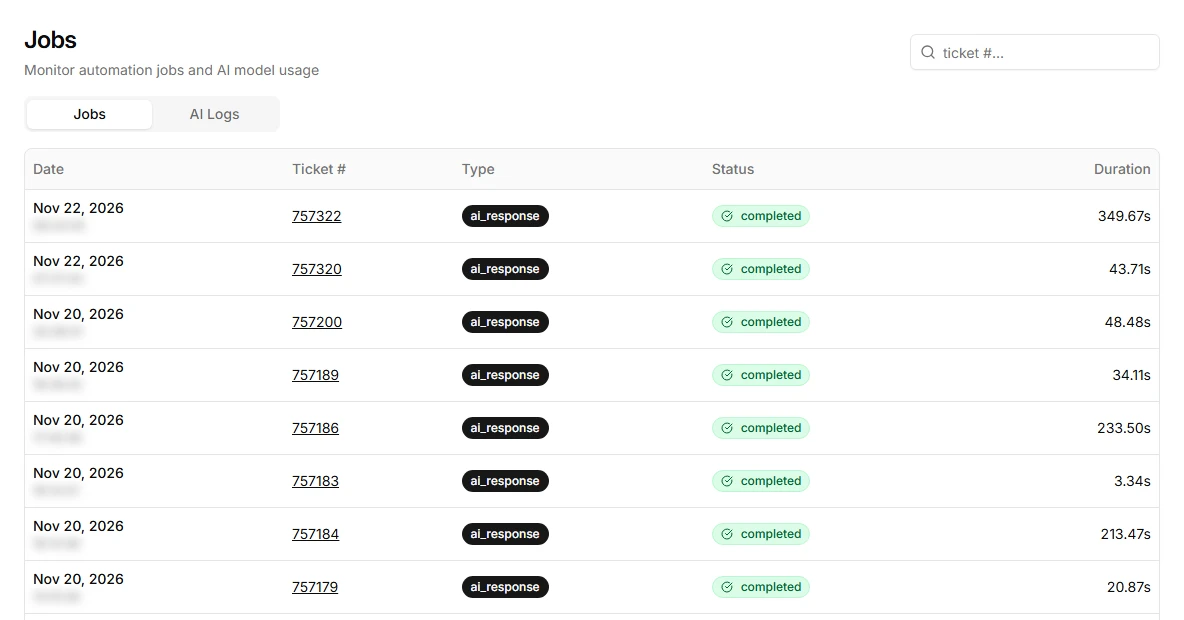
- Date: when the job ran
- Ticket #: the ticket it ran on
- Type: the automation, matching the actions in the agent's Automations tab.
ai_responsewrites and sends the AI reply,ai_followupsends a follow-up, andset_tags,set_priority,assign_toandclose_ticketupdate the ticket. - Status:
queuedwhile it waits for its delay,running, thencompletedorfailed - Duration: how long the job took from start to finish
Type a ticket number in the search box to see every job for one ticket. That's the fastest way to answer "did the AI reply to this customer?"
AI logs
The AI Logs tab lists each call to the AI model.
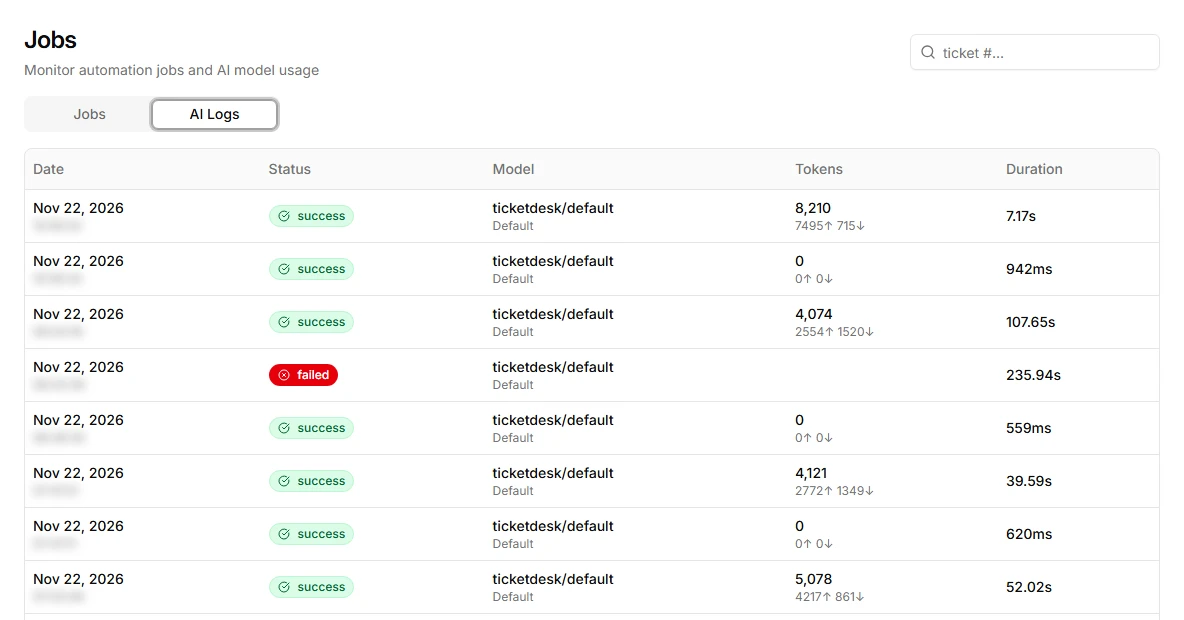
- Status:
successorfailed - Model: the model that answered, as configured on the agent
- Tokens: total tokens, with input (up arrow) and output (down arrow) below
- Duration: how long the model took to answer
AI logs include replies to email tickets and website chats. One AI response can show up as more than one entry, so the number of logs is usually higher than the number of jobs.
Find out why there was no AI reply
- Search the Jobs tab for the ticket number.
- No job at all: no automation matched. Check that the inbox has an AI agent and that the agent's AI response automation is enabled. Also check the block list and whether the requester is blocked.
- A
queuedjob: the automation is waiting for its delay. The ticket's timeline shows "Queued for AI response in" followed by the remaining time. - A
failedjob or AI log: open the ticket and check its Logs tab, then test the same question in the playground. - A
completedjob but a poor answer: the agent likely lacks training content on the topic. Add a source and test again.
Tokens and AI credits
Long training documents and long ticket threads both raise the input token count. If the input tokens are much higher than the output, the agent is reading a lot of context for each answer. Shorter, focused training sources keep answers accurate and calls cheaper. Your plan's monthly AI credits are listed under plans and billing.
For trends over time, such as the share of tickets answered by AI, use Reports.