Send ticket replies from your own email domain
Updated · View as Markdown
By default, replies from an inbox are sent from its Ticketdesk AI address, such as support@ticketdesk.ai. Customers see that address in the From line and reply to it. To send from your own domain instead, connect an email provider account as the inbox's sender. AI replies, team replies and auto-replies from that inbox all go out through it.
Supported providers:
- Resend
- Postmark
- Mandrill (Mailchimp Transactional)
- SendGrid
- Mailgun
Prepare your provider
Do this in the provider's dashboard before you start in Ticketdesk AI:
- Add and verify your sending domain, including the SPF and DKIM DNS records the provider gives you. Unverified domains either fail or land in spam.
- Create an API key with permission to send email.
| Provider | Where to find the key | Notes |
|---|---|---|
| Resend | Dashboard, API Keys | The key starts with re_ |
| Postmark | Servers, then API Tokens | Use the Server API Token |
| Mandrill | Settings, SMTP & API Info | |
| SendGrid | Settings, API Keys | Give the key Full Access or Mail Send permission |
| Mailgun | Dashboard, Domains | Also needs the sending domain and the region, US or EU |
Add the sender
- Open Settings, select Inboxes and edit the inbox.
- Under Sender Configuration, click Setup a Sender Account.
- Click Add New.
- Choose the Email Provider.
- Enter the Sender Name customers should see, such as "Acme Support", and the From Email Address, such as
support@yourcompany.com. The address must be on the domain you verified with the provider. - Paste the API key. For Mailgun, also enter the Domain, for example
mg.yourcompany.com, and pick the Region. - Click Send Test Email. Ticketdesk AI sends a test message through the provider to your own email address.
- When the test succeeds, click Create Sender.
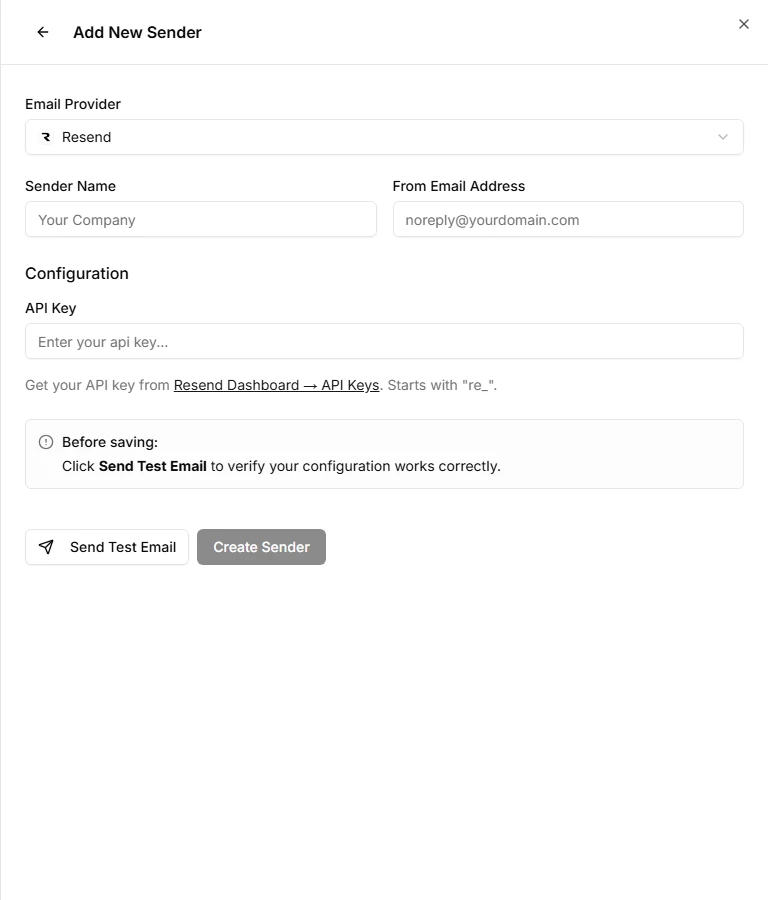
The Create Sender button stays disabled until a test email goes through. If the test fails, the error message comes from the provider. The usual causes are a wrong or restricted API key, an unverified domain, or a From address on a different domain.
Use the sender for the inbox
In the Senders panel, click Select next to the sender, then click Save Changes at the top of the inbox page. The Sender Configuration box now names the provider and the address replies are sent from.
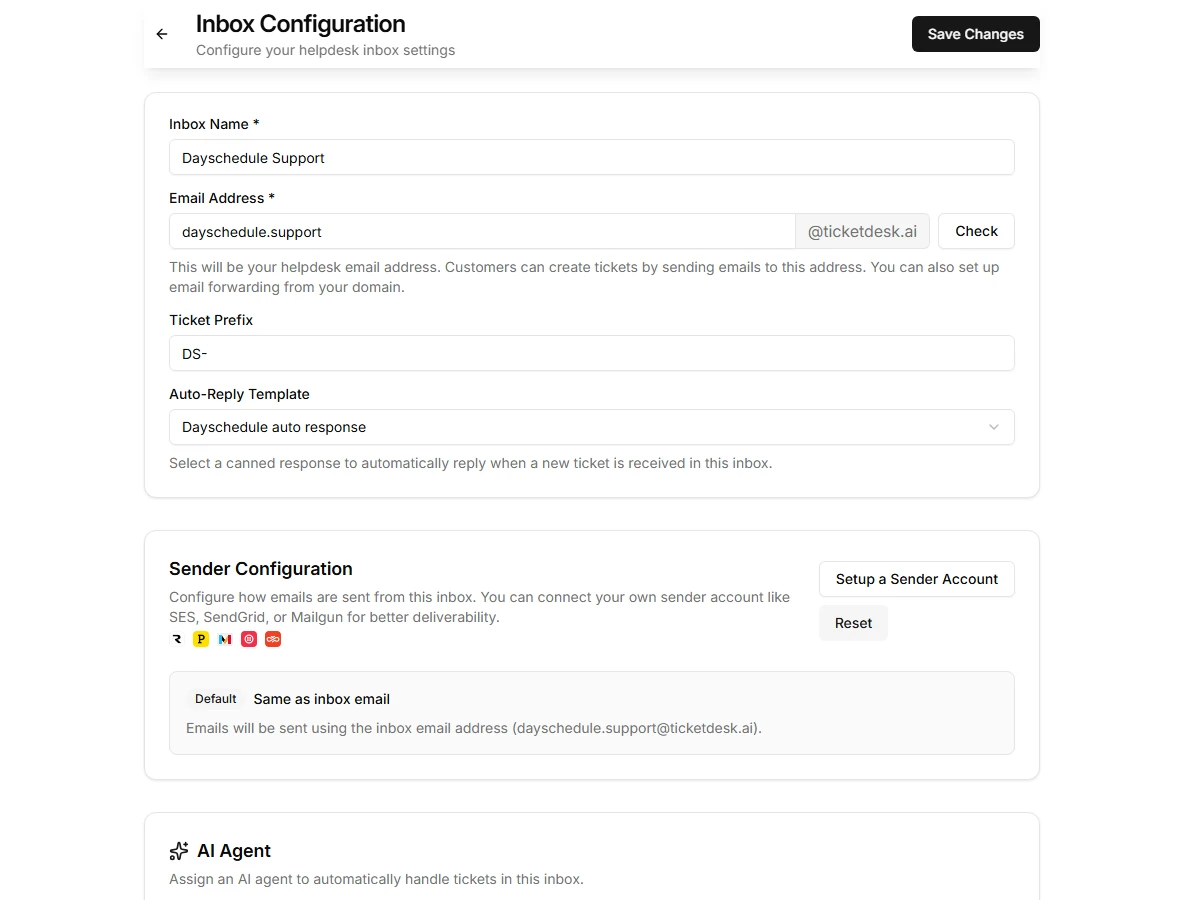
One sender can be used by several inboxes. To go back to the Ticketdesk AI address, click Reset and save.
Keep receiving replies
The sender only changes outgoing email. Incoming email still has to reach the inbox's Ticketdesk AI address, so forward your support mailbox to it:
Use the same address for forwarding and for the From line. When customers reply, their email goes to your mailbox, gets forwarded, and lands on the same ticket.
Troubleshooting
- Replies still come from
@ticketdesk.ai: you selected the sender but didn't click Save Changes on the inbox page. - Customers find replies in spam: check that SPF, DKIM and, if your provider supports it, a DMARC record are set for the domain. Provider dashboards usually show the status.
- Some replies fail after it worked before: the API key may have been revoked or the provider account suspended. Open the sender, run Send Test Email again and check the result.