Team and account
Invite team members and set roles
Updated · View as Markdown
Everyone who answers tickets or chats needs their own user. That way tickets can be assigned to them, replies show their name, and reports count their work separately.
Invite teammates
- Open Users in the sidebar.
- Click Add User.
- Enter one email address per line. You can invite several people at once.
- Pick a Role. All invited users get the same role, so invite admins and staff in separate batches.
- Click Send Invites.
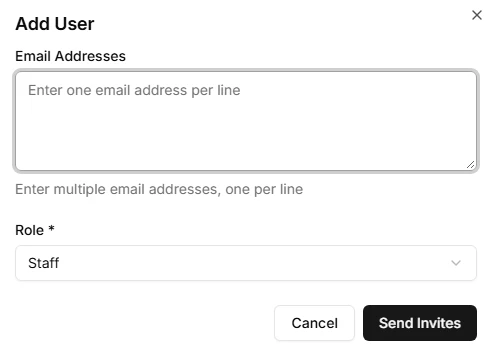
Each person gets an email invitation. Until they accept it, they show as Pending in the list.
Roles
| Role | Can do |
|---|---|
| Owner | Everything, including deleting tickets, requesters, chats, agents, inboxes and other records |
| Admin | Same access as Owner. Use it for team leads who manage the account with you. |
| Staff | Work on tickets and chats: reply, add notes, assign, tag, change priority and status, and edit settings. Can't delete anything. |
Delete access is the difference between Staff and the other roles. A staff member who tries to delete gets the message "You don't have access to Delete method. Contact your account Admin." Give support agents the Staff role and keep Owner and Admin for the people who manage the account.
Manage users
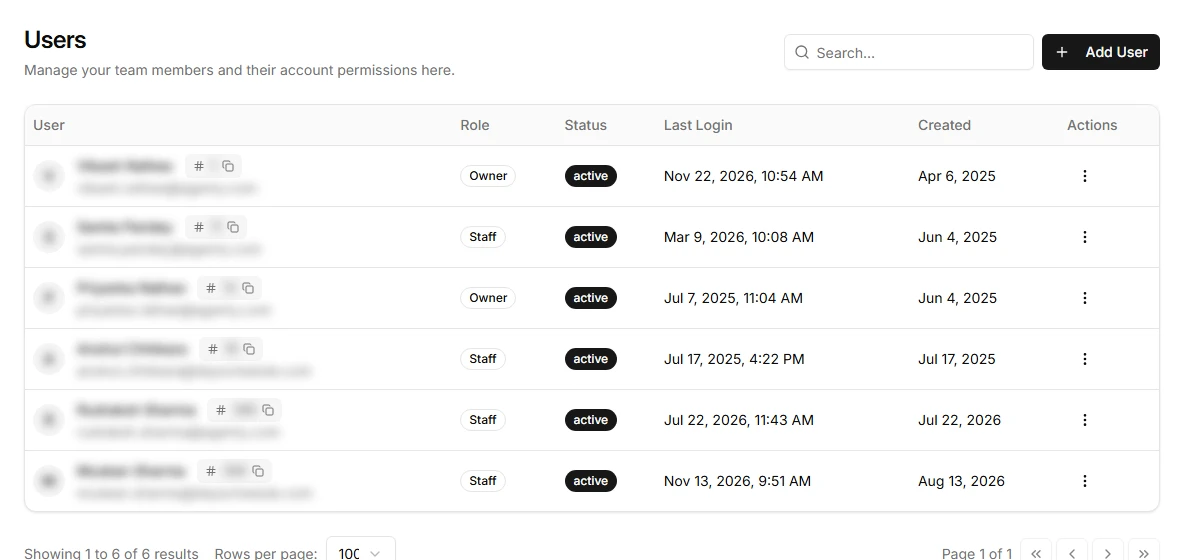
The list shows each user's role, status, last login and when they were added. Open the menu at the end of a row to:
- Edit the user's role or set their status to active or inactive. You can't edit your own user from here, use profile settings instead.
- Resend Invite to someone who hasn't accepted yet. This only shows for pending users.
To remove users, select them with the checkboxes and delete them. Deleting needs the Owner or Admin role.
How many users your plan includes
| Plan | Team members |
|---|---|
| Basic | 3 |
| Professional | 5 |
| Business | 10 |
| Enterprise | Unlimited |
If you reach the limit, upgrade on the Billings page. See plans and billing.
Related
- Each user sets their own name, phone number and time zone in profile settings.
- Every change your team makes through the app or the API is recorded in the audit logs.