Tickets
Manage requesters and block spam senders
Updated · View as Markdown
A requester is the person or company a ticket comes from. Ticketdesk AI creates one automatically the first time an email arrives from a new address, and reuses it for every later ticket from that address. The Requesters page lists all of them.
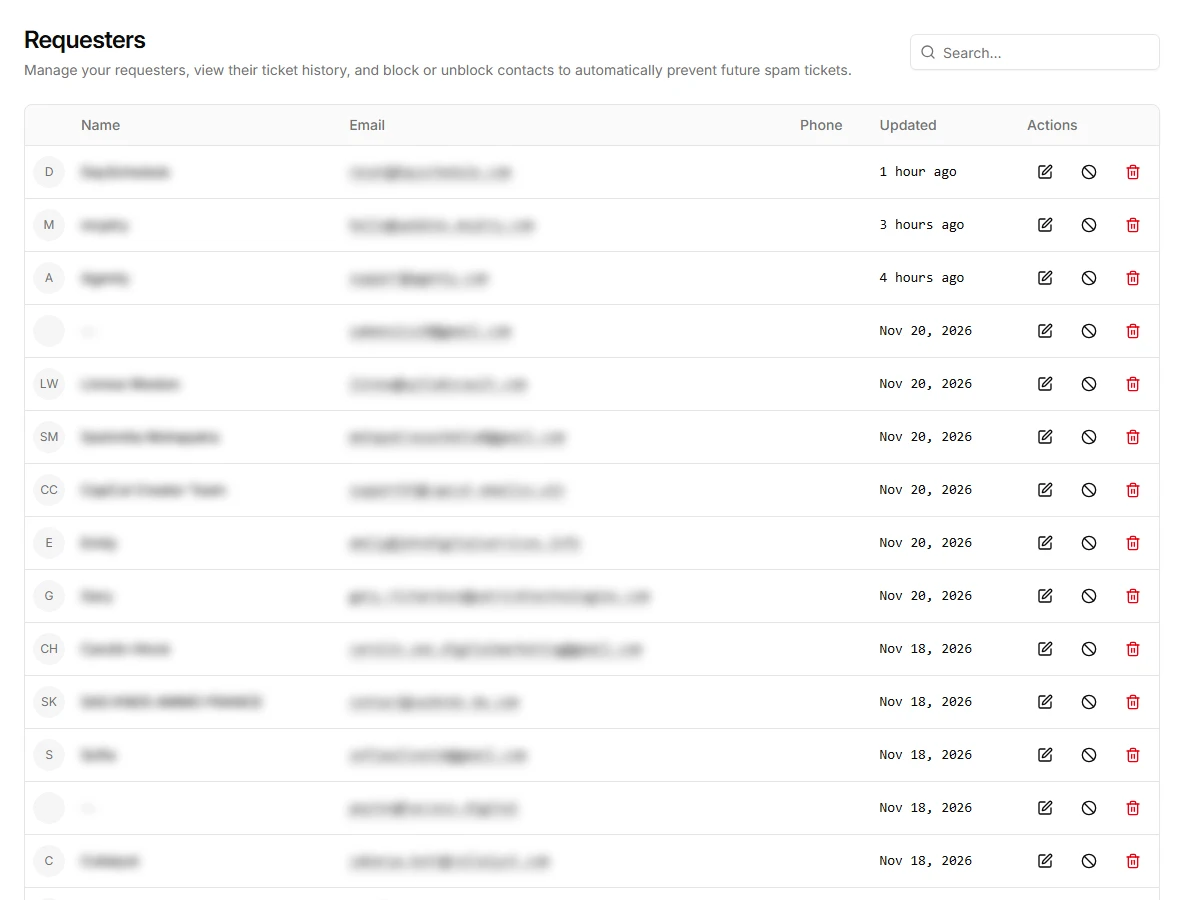
Each row shows the name, email address, phone number and when the requester last changed. Use the search box to find someone by name or email.
Edit a requester
Click the pencil icon in the Actions column to change the name, email or phone number. A clear name helps on busy days, since the ticket list shows the requester name instead of the email address.
You can also change the requester of a single ticket from the ticket's sidebar, for example when a colleague forwards a customer's email to your support inbox.
Block a spam sender
Click the block icon in the Actions column. The requester gets a Blocked badge, and new emails from that address no longer create tickets. Ticketdesk AI drops them before any automation runs, so they also don't trigger AI replies or use AI credits.
Blocking matches the exact email address. Spammers who rotate addresses need a different approach: add a rule to the AI agent's block list, which matches by sender address, whole domain or a keyword in the subject or body.
Click the icon again to unblock the requester. Emails sent while they were blocked are not restored.
To block a visitor in website chat instead, see block spam visitors in live chat.
Delete a requester
Click the red trash icon and confirm. This deletes the requester and all of their tickets, and it can't be undone. Use block instead if you only want to stop new tickets.
Only Owners and Admins can delete, see team members and roles.